

Custom BIOS Settings for Enterprise Laptops: Practical Guide
Treat custom BIOS settings for enterprise laptops as a tested fleet baseline, not a set of tweaks to copy blindly. A configuration that suits one deployment may behave differently across laptop models, leaving IT teams unsure which settings affect security, performance or manageability. It’s also easy to confuse firmware controls with policies that belong in the operating system.
To achieve consistency without creating avoidable risk, first identify which BIOS and UEFI settings support your organisation’s requirements. Then validate them on each relevant model before wider deployment. This makes configuration decisions easier to document, test and review.
This guide explains which settings are worth assessing, how they relate to operating-system management, and how to plan a practical testing and rollout process. It also covers what procurement teams should confirm when sourcing laptops in bulk, including each batch’s BIOS or UEFI configuration status. Whether you’re standardising refurbished Dell, Lenovo or HP laptops, the aim is a reliable baseline that fits your deployment, not a one-size-fits-all preset.
Key Takeaways
- Identify which firmware controls support your security, deployment and performance requirements, while accounting for differences between laptop models.
- Understand where BIOS or UEFI settings end and operating-system policies or endpoint-management tools begin.
- Document custom BIOS settings for enterprise laptops in a baseline, then test it on representative devices before wider rollout.
- Assess Secure Boot and TPM as related but distinct parts of your security approach, not interchangeable settings.
- Before purchasing a laptop batch, confirm the exact model, firmware version, supported controls and current configuration state with the supplier.
Custom BIOS settings for enterprise laptops: what they control
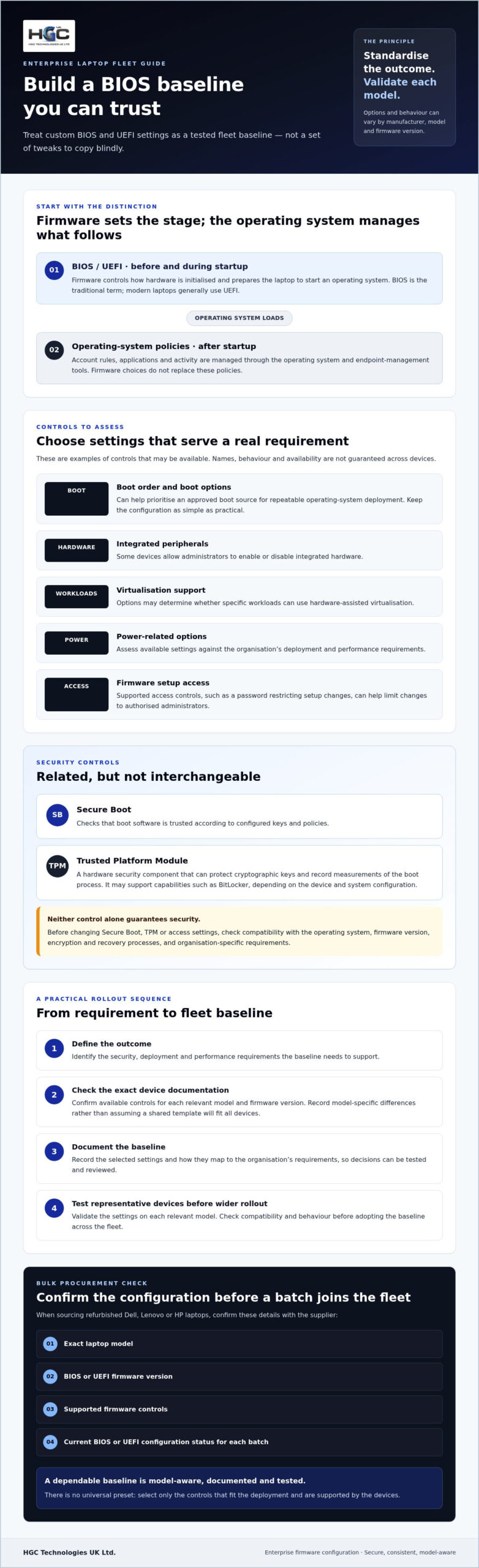
Custom BIOS settings for enterprise laptops are firmware-level choices that control how a device initialises its hardware and prepares to start an operating system. BIOS is the traditional term, whilst modern laptops generally use UEFI, a more recent firmware interface. Both can expose configurable controls, but the options vary by manufacturer, model and firmware version. For background, see this overview of the Basic Input/Output System (BIOS) and its role in the boot process.
These settings sit below the operating system. They’re different from operating-system preferences, such as user account rules, and central device-management policies applied through an organisation’s management tools. Firmware choices can determine what the laptop makes available to the operating system, but they don’t replace policies that govern behaviour once the system has started.
Which enterprise laptop settings are commonly configurable?
Depending on the device, administrators may be able to adjust boot order, enable or disable integrated peripherals, configure virtualisation support, or change power-related options. Security controls may include Secure Boot and firmware-level access controls, such as a password that restricts changes to setup options. These are examples, not a guaranteed list of features. Names, behaviour and availability can differ even between models from the same manufacturer.
Check the manufacturer’s current documentation for the exact model and firmware version before writing a configuration standard. Don’t assume a setting exists or behaves identically across a mixed-vendor fleet. Record model-specific differences rather than forcing unsupported options into a shared template.
Why create a consistent BIOS baseline?
A documented baseline gives deployment teams a repeatable starting point. Agreed settings can make provisioning more consistent, reduce avoidable variation during support, and apply security choices in a controlled way. The value comes from selecting and validating settings against your organisation’s requirements, not from changing every available option.
There’s no universal preset. A setting that supports one organisation’s deployment may be unnecessary or unsuitable for another, and a choice that works on one laptop model may not translate to another. Define what the baseline needs to achieve, then map those requirements to controls confirmed in the relevant manufacturer documentation. Standardise the intended outcome, check each model’s supported options and test how the settings behave before adopting them across the fleet.
How enterprise BIOS settings affect security, deployment, and performance
Firmware decisions shape what happens before the operating system loads. Boot controls can influence which device starts first, peripheral settings can restrict hardware access, and virtualisation options can determine whether specific workloads can use hardware-assisted virtualisation. These choices can support a deployment plan, but they don’t replace operating-system security policies. Firmware governs platform behaviour before and during startup, whilst OS policies manage accounts, applications and activity after the system loads.
Security settings: Secure Boot, TPM, and firmware access
Secure Boot and TPM serve different purposes. Secure Boot checks that boot software is trusted according to configured keys and policies. A TPM is a hardware security component that can protect cryptographic keys and record measurements of the boot process; it may support capabilities such as BitLocker, depending on the device and system configuration. Neither control alone guarantees security. NIST’s BIOS Protection Guidelines provide a reference for protecting firmware against unauthorised changes.
Restrict firmware setup access to authorised administrators, using the controls supported by the device and the organisation’s procedures. Before changing Secure Boot, TPM or access settings, check compatibility with the operating system, firmware version, encryption and recovery processes, and any organisation-specific requirements. A change that disrupts boot or access to protected data can create a support issue, so validate it before applying it broadly.
Boot, virtualisation, and power settings
Boot order can support repeatable operating-system deployment by prioritising the approved boot source. Keep the configuration as simple as practical, and avoid disabling other boot options unless there’s a clear requirement and a recovery route. Enable virtualisation where intended software or workloads depend on it, rather than switching it on by default without checking the organisation’s needs.
Power options involve a similar trade-off. A performance-focused profile may suit demanding workloads, whilst a more conservative setting may better support mobile users who prioritise battery life. Compare the available firmware controls with operating-system power policies and actual user requirements. Don’t assume a firmware change will deliver the same result across different models.
When setting custom BIOS settings for enterprise laptops, document the purpose of each change and verify its effect on representative devices before wider rollout. If hardware sourcing is part of the planning, HGC Technologies UK Ltd. supplies bulk refurbished laptop options from Dell, Lenovo and HP. Confirm the exact model, firmware version and configuration state for any proposed batch rather than assuming a particular baseline is already in place.
BIOS settings versus management policies: choose the right control
Choose the control layer that matches the requirement. Firmware settings govern device behaviour before the operating system starts, operating-system policies manage supported settings after startup, and endpoint-management tools can help apply or monitor controls remotely where the device and management platform support them. Using the wrong layer can leave a requirement unenforced or create competing instructions.
| Control layer | Suitable use | Limitations | What to verify |
|---|---|---|---|
| BIOS or UEFI firmware | Boot behaviour, hardware initialisation and firmware-level access controls | Options and remote control vary by model and firmware; changes may affect startup | Manufacturer documentation, whether the setting can be locked or reset, and the effect on recovery |
| Operating-system policy | Supported OS behaviour, user-facing configuration and security rules applied after startup | Cannot replace controls that operate before the OS loads | OS version, policy support and interaction with existing settings |
| Endpoint-management tool | Applying or monitoring supported policies across enrolled devices | Capabilities depend on the platform, device, configuration method and enrolment state | Current platform and manufacturer documentation, prerequisites and reporting behaviour |
When should a setting be controlled in firmware?
Use firmware for requirements tied to boot, device initialisation or hardware-level access. Before adding a control to a fleet baseline, check whether it can be locked, changed remotely or restored after a reset on each model in scope. The manufacturer’s documentation is the authority for model-specific capabilities. Don’t assume a setting or management method is consistent across a product range.
When are operating-system or device policies a better fit?
Use OS policies for supported behaviour managed within the operating system, such as user and configuration rules. Microsoft Intune may form part of a wider process for deploying BIOS configurations, but check current documentation for supported devices, prerequisites and controls before relying on it. A tool’s presence doesn’t mean every firmware option is available through it.
Keep ownership clear. If the same outcome is configured at both firmware and OS level, define which layer is authoritative and test how the controls interact. Otherwise, policies may conflict, or teams may misread which setting is enforcing the requirement.
Use firmware for firmware-level controls and policy tools for supported OS controls. That distinction gives teams a practical basis for designing custom BIOS settings for enterprise laptops without expecting one management layer to do every job.
How to plan and roll out custom BIOS settings safely
A reliable rollout starts with requirements, not a list of settings to switch on. Treat custom BIOS settings for enterprise laptops as a controlled change: define the intended outcome, test it against real deployment conditions, and expand only when the results are understood.
Build and test a model-aware configuration baseline
- Set the requirements. Identify the business need behind each proposed change. Separate mandatory security and deployment requirements from optional preferences for performance or user experience.
- Inventory the fleet. Record laptop models and firmware versions. Group devices by model where controls or behaviour differ, rather than assuming one configuration will suit every device.
- Draft and review the baseline. Document each approved value, its purpose, the accountable owner and any model-specific exceptions. Check the proposed controls against the relevant manufacturer documentation.
- Pilot representative devices. Test across the models and user groups in scope. Include everyday applications, encryption and recovery processes, and operating-system deployment workflows. Check that the change works and hasn’t disrupted expected behaviour.
- Validate before expanding. Compare results with the requirements and record any failures or exceptions. Roll out in controlled stages, monitoring outcomes at each stage and pausing if a device fails to boot or no longer meets a security requirement.
Document changes and prepare recovery
Keep a configuration record that captures firmware versions, approved settings, change rationale, approvals, test results and deployment owners. Include rollback steps and a clear escalation route. Users should know how to report a failed boot, whilst IT should know who can authorise recovery and how to isolate affected devices.
Plan for changes beyond the initial rollout. A firmware update or settings reset may alter or clear saved values, so define when the baseline must be rechecked. Confirm recovery options in manufacturer guidance and avoid unsupported reset or recovery procedures. If a device fails, stop further deployment of that configuration, record the model and firmware version, and follow the verified recovery process before resuming.
For procurement teams, consistency in model and firmware can make baseline planning more straightforward, but confirm the details of the proposed batch rather than assuming its configuration state. HGC Technologies UK Ltd. supplies bulk refurbished Dell, Lenovo and HP laptops. Explore bulk laptop sourcing and verify the exact models and firmware details relevant to your requirements.
What to confirm when sourcing enterprise laptops for a BIOS baseline
A configuration baseline is only useful if the laptops you buy can support it. Before placing a bulk order, turn each approved requirement into a supplier question and confirm the answers for the specific batch. Don’t assume refurbished devices share the same firmware version or arrive with a particular BIOS or UEFI configuration.
Questions to ask before standardising a laptop batch
Request the details needed to compare the proposed devices with your baseline. Confirm:
- Which exact laptop models are included, and are there model variations within the batch?
- Which BIOS or UEFI firmware versions are currently installed?
- Which required controls are supported on each model, according to its manufacturer documentation?
- What information about the devices’ current configuration state can the supplier provide?
Check that every answer applies to the proposed order, rather than relying on general information about a manufacturer or product range. If a required control isn’t supported, or the configuration state is unknown, account for that in your procurement decision and deployment plan.
Connect configuration planning with procurement
Compare the approved baseline with the specifications of each refurbished laptop option. Consider whether each model meets your organisation’s technical requirements and whether differences between models would require separate configuration records or testing. A procurement guide focused on bulk Dell refurbished laptops can help structure model and batch checks. Apply the same discipline when assessing Lenovo and HP devices.
Assess suppliers on the clarity of the information they can provide about the proposed hardware, not on an assumption that firmware will be prepared to your baseline. HGC Technologies UK Ltd. wholesales refurbished Dell, Lenovo and HP laptops in bulk. Confirm current stock and the BIOS or UEFI details for any specific batch directly as part of your purchasing checks.
Use this information to decide whether a batch fits your planned fleet, and document any model or firmware differences before standardising. To explore hardware sourcing, explore HGC Technologies’ business hardware supply.
Build a dependable laptop baseline, one verified step at a time
Effective custom BIOS settings for enterprise laptops begin with clear requirements, not a universal preset. Choose firmware controls for boot and hardware-level needs, and use operating-system policies for supported settings within the OS. Then document the approved configuration, test it on representative models and prepare recovery steps before expanding deployment.
Procurement is part of that process. Confirm the exact laptop models, firmware versions, supported controls and configuration state for each proposed batch. Refurbished devices shouldn’t be assumed to share the same BIOS or UEFI settings, even when they’re from the same manufacturer.
HGC Technologies UK Ltd. supplies bulk refurbished Dell, Lenovo and HP laptops, as well as custom-built PCs and server solutions. When considering a laptop batch, verify its details against your organisation’s baseline.
Ready to explore hardware options for your business? Explore HGC Technologies’ business hardware supply and take the next step towards a fleet that meets your deployment requirements.
Frequently Asked Questions
What are custom BIOS settings for enterprise laptops?
Custom BIOS settings are firmware options adjusted to meet an organisation’s requirements for boot behaviour, hardware access, security or deployment. Available controls and their names vary by manufacturer, model and firmware version. An enterprise baseline records the intended configuration, its purpose and how it has been tested. It isn’t a universal preset: device capabilities differ, and the right settings depend on the organisation’s requirements and deployment environment.
Which BIOS settings should an enterprise laptop have?
There’s no single BIOS configuration suited to every organisation or laptop model. IT teams commonly assess boot options, firmware access, Secure Boot, virtualisation and relevant power settings against their security and deployment needs. Check the manufacturer’s documentation to confirm which controls are available, then test proposed values on representative devices and document what’s approved. Assess operating-system policies separately, as they may be a better fit for controls that apply after startup.
Can BIOS settings be managed across multiple enterprise laptops?
Some manufacturers and device-management approaches support central management of selected firmware settings, but capabilities depend on the model, firmware and tools in use. Check current manufacturer documentation before designing a fleet process, and confirm which settings can actually be applied and reported. If remote configuration isn’t supported, an approved manual or deployment workflow may be needed. Pilot the chosen method on representative devices before extending it across the fleet.
Is it safe to change BIOS settings on a business laptop?
Changing BIOS settings can be safe when changes are authorised, documented, compatible with the device and tested before wider deployment. Incorrect values may affect booting, hardware availability, encryption workflows or operating-system installation. Record the existing configuration and recovery steps, then use an approved change process. Before proceeding, consult the manufacturer’s current guidance for model-specific risks and recovery options, and involve the relevant IT administrators if a proposed change could affect protected data or deployment.
What happens if a BIOS setting conflicts with BitLocker or device deployment?
A firmware change may alter the conditions under which an encrypted device starts or interrupt an operating-system deployment workflow. The outcome depends on the setting, device and organisation’s configuration. Test proposed changes with encryption and deployment processes before rollout, and involve the IT administrators responsible for them. Keep recovery procedures available, and verify any recommended steps against current Microsoft and manufacturer documentation before changing settings on deployed devices.
Do refurbished enterprise laptops support custom BIOS settings?
Refurbished laptops may offer configurable firmware options, but support depends on the exact model and firmware version. Don’t assume every device in a batch has the same settings, firmware or configuration state. First document your requirements, then check whether the specific devices under consideration support them and what configuration information is available. Confirm these details for the proposed batch before purchasing or treating its laptops as a standardised fleet.
Should BIOS settings or Microsoft Intune policies control enterprise laptop configuration?
They serve different purposes. BIOS or UEFI settings govern selected firmware-level behaviours, whilst Microsoft Intune can manage supported operating-system and device policies. Choose the control layer that fits the requirement and is supported by the device and platform. Avoid duplicating or conflicting configurations. Document which layer owns each setting, and check current Microsoft and manufacturer guidance before deployment so administrators can apply and troubleshoot controls consistently.

Sustainable IT for CSR: A UK Business Guide for 2026
The UK generates approximately 1.9 million tonnes of e-waste annually, yet the 2026 WEEE collection

Custom PCs for Design Agencies: 2026 Procurement Guide
Your agency's most expensive overhead isn't your studio rent or your premium software subscriptions;

How Laptop Grading Affects Performance: The 2026 B2B Buyer Guide
Surface scratches don't throttle processors. Even so, corporate procurement teams routinely overspen