
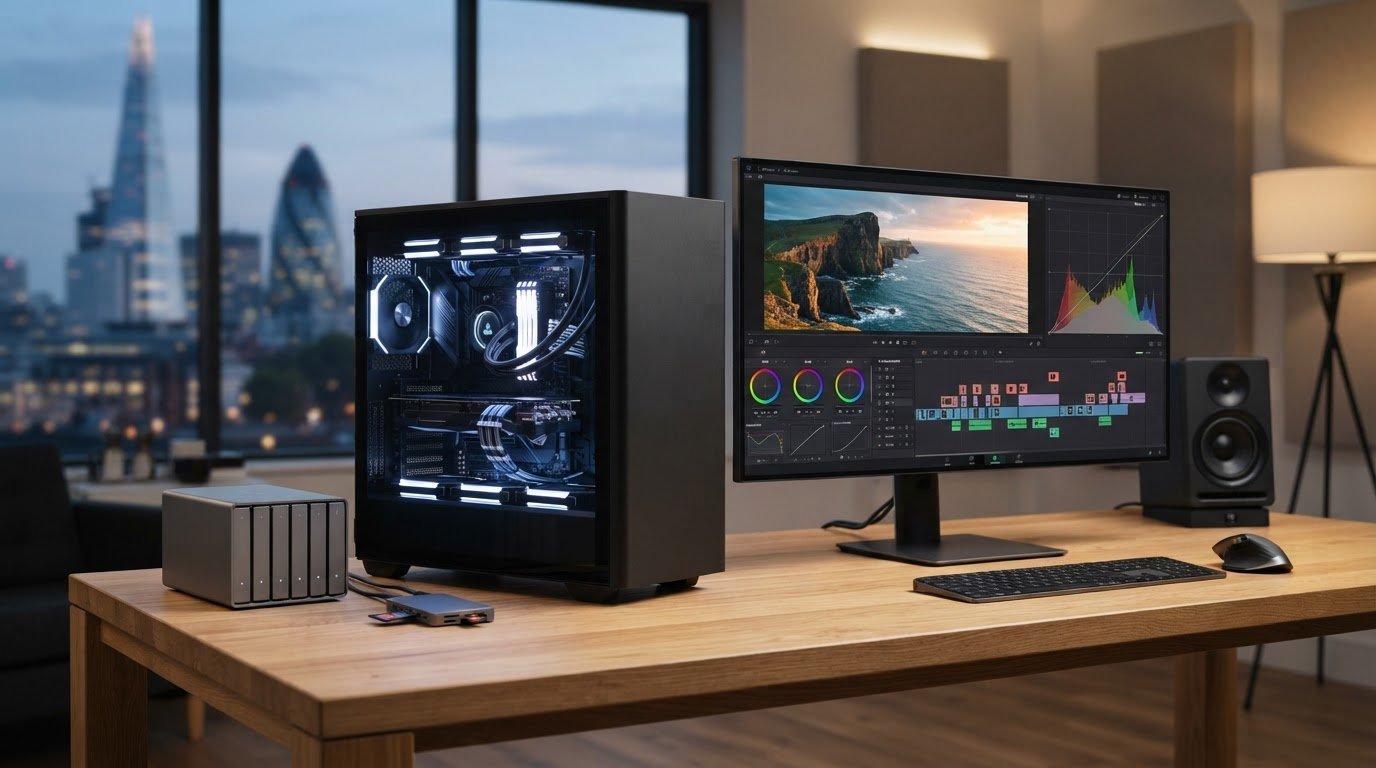
Custom-built video editing PCs for UK business projects
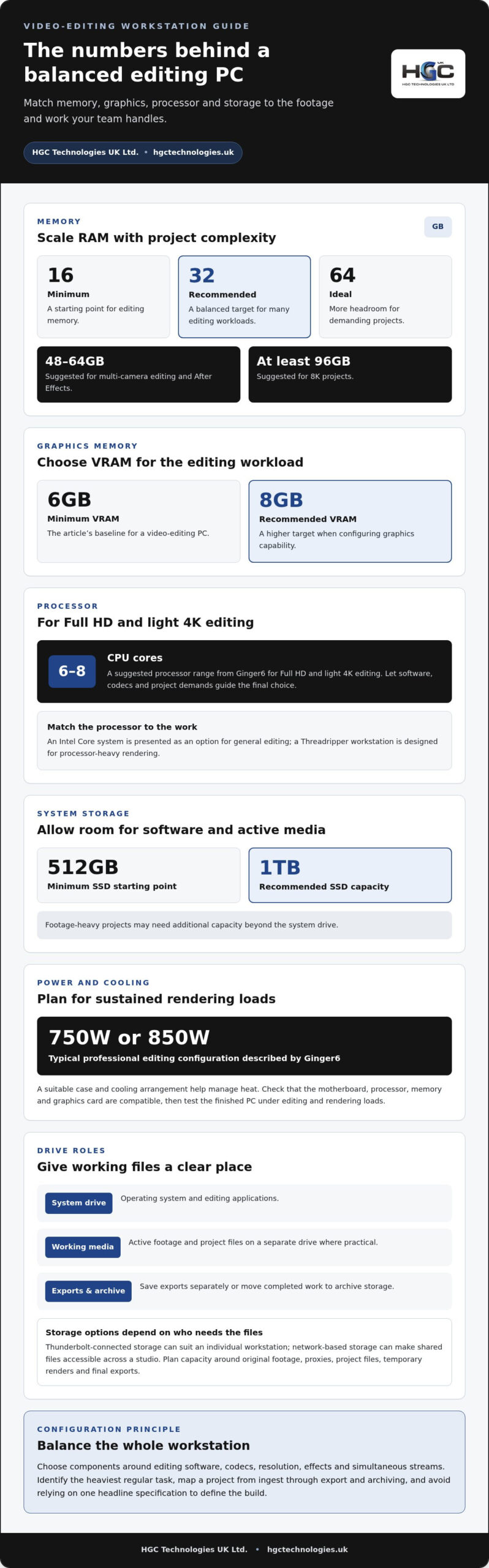
A video-editing PC should match the software, codecs and resolution your projects demand, not just boast a fast processor. For a video-editing business, custom-built PCs should balance memory, graphics and storage around real workloads. Start with at least 16GB of memory, 32GB recommended and 64GB ideal; graphics cards should have at least 6GB of VRAM, with 8GB recommended.
Choosing custom-built PCs for a video-editing business means matching the computer to the work editors do each day, from handling footage to exporting finished projects. A balanced configuration matters more than any single headline specification, and demanding projects may need more resources.
This guide explains how to match custom-built PCs for a video-editing business to its software, codecs and project resolution, and how to plan storage for footage and exports. It also covers support considerations and how HGC Technologies UK’s bespoke custom-built PCs can fit your requirements.
Key Takeaways
- Match the processor, graphics card and memory to your editing software and workload, with extra headroom for complex projects.
- Separate system and application activity from footage storage where practical, and plan capacity around source files and exports.
- Use your codecs, project resolution and editing techniques to guide component choices rather than relying on a single headline specification.
- Include warranty and technical support considerations in your decision, alongside performance and storage requirements.
- Consider a custom-built PC when your business needs a configuration tailored to its editing projects.
What makes a good video editing PC?
A strong editing computer balances processor, graphics, memory and power around the work it needs to handle. Start with the software and footage, then configure the workstation for everyday editing and rendering.
Workstation configurations for editing workloads
Purpose-built workstations bring together components for creative software, from timeline playback to final rendering. For Full HD and light 4K editing, Ginger6 suggests a 6 to 8 core CPU. Memory needs rise with project complexity: 16GB is a minimum, 32GB is recommended, and 64GB is ideal. Punch Technology recommends 48GB to 64GB for multi-camera editing and After Effects, and at least 96GB for 8K projects.
Graphics memory also matters. A video editing PC should have at least 6GB of VRAM, with 8GB recommended. These figures help frame a configuration, but the right balance depends on how the chosen applications use the processor and graphics card.
Customisable workstation options
Customisation lets a business prioritise the components its editing workload relies on. Compare an Intel Core system for general editing with a Threadripper workstation designed for processor-heavy rendering. Let the application and project type guide your choice, then balance memory and graphics capability against the footage, effects and simultaneous streams in your workflow.
Power and cooling belong in the same decision. Ginger6 describes a typical professional editing configuration with a 750 W or 850 W power supply. A suitable case and cooling arrangement help manage heat from components under sustained rendering loads. Confirm that the chosen parts fit together, including the motherboard, processor, memory and graphics card.
Video-editing work is not limited to film studios. Social media teams producing short clips, marketing departments creating campaign videos and post-production teams handling multi-camera work can all benefit from creative workstations. Their workloads differ, so identify the heaviest regular task before selecting components. A PC built for occasional short-form exports may not suit continuous high-resolution rendering.
Building a video-editing PC involves compatibility, cooling and downtime risks. Incompatible components can prevent a system from starting or limit performance, while inadequate cooling can cause heat-related slowdowns. Reduce risk by checking component compatibility, testing the finished computer under editing and rendering loads, and planning a backup machine or workflow for urgent work.
For UK businesses, capital allowances or tax relief depend on the business’s tax position and how the equipment is used. Keep purchase and business-use records, then apply the relevant HMRC rules with your accountant.
Storage drives for operating systems, source footage and exports
Storage affects how a video editing computer manages applications, original footage, project files and finished exports. Plan capacity and drive roles around the production workflow, rather than treating storage as one undifferentiated space. A 512GB SSD is a minimum starting point for a video editing PC, while 1TB is recommended. Footage-heavy projects may need additional capacity beyond the system drive.
Separating the operating system and editing applications from source footage can help keep media-file access distinct from system activity. For example, use one drive for the operating system and software, and another for active footage and project files. Save exports to a separate destination or move them to archive storage when a project is complete. This layout makes working files easier to manage and frees space without disturbing installed applications.
Estimate storage capacity from the material your team actually retains. Account for original camera files, proxy media, project files, temporary render files and final exports. Keep active projects readily accessible and organise completed work in a clear archive structure. Teams sharing folders should agree on naming conventions and backup routines so editors can find the right footage and avoid overwriting current project files.
Storage is only one part of workstation planning. The processor handles editing operations, memory supports active applications and timelines, and the graphics card accelerates supported visual tasks. If one component is significantly constrained, adding storage alone will not fix the bottleneck. Match these resources to the editing software, footage formats and effects in your production workflow.
For a single editor, locally installed drives may be straightforward to manage. A studio with several workstations may need shared storage, consistent folder structures and standardised system configurations. Standardisation helps editors move between computers with fewer surprises, especially when projects shift between desks. Set access permissions and file-management practices to protect shared project material and reduce accidental duplication.
When projects need substantial shared capacity, external Thunderbolt storage or network-based storage arrays can provide more space. Thunderbolt-connected drives can suit an individual workstation, while network storage can make shared files accessible across a studio. The right fit depends on how many editors need the same footage, the transfer demands of their projects and where files must remain accessible.
Before finalising a configuration, map one typical project from ingest through editing, export and archiving. Record which files need fast local access and which can sit in shared or archive storage. That workflow gives a clearer basis for selecting drive capacity and connections. Businesses planning a storage-conscious workstation configuration can use this checklist to frame their requirements.
Warranty and technical support
A video-editing workstation is part of a production workflow, so warranty terms and technical support matter as much as hardware performance. Before selecting a system, understand what the warranty covers, how to report faults and what happens if an essential component fails. A clear process helps teams plan repairs and limit disruption to scheduled editing, encoding and delivery work.
Read the warranty terms for the complete computer and its individual components. Check whether coverage includes parts, labour and return arrangements, and note any exclusions affecting upgrades or user-installed hardware. Keep the purchase record and configuration details together. If a graphics card or memory module is replaced, these records help identify the original specification and support a precise fault report.
Technical support is most useful when you can provide clear evidence. Record the operating system, editing application, hardware configuration and symptoms before raising an issue. For example, note whether Adobe Premiere slows during playback, export or encoding. Include any error message and whether the problem occurs with one project or several. This can help distinguish an application issue from a possible hardware fault.
ISV certification refers to testing between a workstation configuration and specific professional software. It can show that a specified system has been assessed for an application, but it does not replace checking the exact configuration and software version. A studio using Premiere should distinguish general compatibility from certification for its precise workstation. The same care applies to NVIDIA graphics hardware and the software features used during editing.
A consultation before purchase can help translate your workload into a practical specification. Prepare examples of the codecs, project resolutions and effects your team uses, then identify where playback or rendering currently slows. Ask for the proposed processor, memory, graphics and storage configuration in writing. This gives your technical team a reference for setup, troubleshooting and future upgrades.
For UK teams, delivery arrangements also affect continuity. Confirm the delivery destination, installation responsibilities and how equipment will be protected in transit. If a workstation is needed for a production deadline, plan its arrival and acceptance testing around the project schedule. On receipt, compare the supplied configuration with the order, open the editing software and test a representative project before assigning client work.
Support planning should include the practical steps after a fault, not just the warranty document. Decide who records the issue, where project files are backed up and how editors can continue work if one computer becomes unavailable. A shared storage workflow or an alternative workstation may reduce interruption, depending on studio resources. Use these requirements to shape business workstation planning around your editing operation.
Choosing a PC based on software, codecs and project resolution
Choose components around the editing software, source codecs and resolutions your team handles. Demanding workflows can behave differently from routine Full HD editing.
CPU selection for software and codecs
The processor affects how smoothly editing software handles tasks such as decoding footage, applying effects and exporting projects. Ginger6 suggests a 6 to 8 core CPU for Full HD and light 4K video editing. Use that as a workload-specific reference, not a universal specification: codec complexity, effects and simultaneous applications also influence processor demand.
List the formats your cameras or clients provide, then identify which applications decode them. If editors regularly work with compressed footage or render several effects, prioritise a processor suited to those operations. Compare the proposed system against your actual software workflow rather than choosing by core count alone.
Creative software compatibility
Build the specification around the programmes editors use, such as Adobe Premiere Pro for video editing or After Effects for motion graphics. Each application can place different demands on the processor, graphics card and memory. Include the team’s other creative tools in your assessment, especially if editors switch between applications during a project.
Check the software’s supported operating system and hardware requirements against the planned configuration. Then consider the versions used across the team. A workstation suited to one application may not be the best fit for a workflow combining editing, compositing and colour work.
Test representative projects before standardising a configuration across a team. Use footage from the codecs handled in production, then assess timeline playback, scrubbing, effects and export behaviour. This can reveal whether delays occur during decoding, rendering or another stage. A short test using only sample files may miss the demands of a layered project.
Resolution should be assessed alongside codec and editing technique. Full HD projects with straightforward cuts place different demands on a computer than 4K timelines with multiple video layers, effects and colour adjustments. For each common project type, note the source format, timeline resolution, number of active layers and typical export settings. This creates a practical basis for comparing workstation options.
Plan for future changes as well as current workloads. If the team expects to adopt higher-resolution footage or more complex effects, identify which components could be upgraded later. Check that the motherboard, case and power supply can accommodate those changes. An upgrade path is useful only if it addresses a likely bottleneck, so use test results to guide investment.
Custom-built video editing PCs in the UK
UK businesses can shape a workstation around their applications, project demands and production workflow. Compare complete builds against the editing tasks your team performs rather than relying on gaming benchmarks alone.
Custom-built PC options in the UK
Custom-built systems let businesses prioritise components for creative work, from Premiere Pro editing to colour grading and rendering. Start by listing the software, footage formats and project resolutions used across the team. Then compare configurations against the most demanding regular task, such as grading high-resolution footage while running other production applications.
Gaming PCs can share powerful graphics hardware with editing workstations, but gaming benchmarks do not represent every editing workload. Assess timeline playback, effects, exports and application compatibility. Businesses evaluating custom-built PCs for video-editing workflows should also consider how editors share projects. Standardising core configurations can make it easier to move work between studio computers.
Custom-built PC cost considerations
How much does a custom-built video-editing PC cost in the UK? The total depends on the processor, graphics card, memory, storage and support requirements selected for the workload. Higher-resolution projects, complex effects and demanding applications may require a more capable configuration.
Compare complete specifications rather than headline component names. Check that each build includes the resources your active projects require, as well as graphics capability suited to your software. A lower-cost configuration may need upgrading sooner if it cannot handle planned workloads. Assess custom-built PCs for video-editing business projects against both current requirements and expected changes.
To assess value, match each build to a specific job. A team producing short social edits may prioritise responsive timeline work, while a post-production team may focus on rendering and colour grading. Match the processor, graphics and memory to the applications in use. This helps avoid paying for performance that does not support your production requirements.
Include operational needs in the comparison. Consider how many editors need similar configurations, whether projects move between workstations and how the business will manage future upgrades. Consistent setups can simplify software deployment and troubleshooting. Record each computer’s components and installed applications so technical teams can identify differences when a project behaves unexpectedly.
Before choosing a build, prepare a brief covering editing applications, codecs, typical resolutions, effects, storage workflow and upgrade priorities. Test a representative project during playback, grading and export to assess how the configuration performs. Discuss a custom workstation configuration for your business editing requirements.
HGC Technologies UK: Bulk Dell Refurbished Laptops
HGC Technologies UK builds custom PCs for businesses that need a workstation tailored to their video-editing workload. Share your software, footage formats, project resolutions and storage workflow to define a suitable configuration. This is a practical next step when standard systems do not align with your editing requirements.
For wider business technology needs, HGC Technologies UK also supplies Bulk Dell Refurbished Laptops, Bulk Lenovo Refurbished Laptops and Bulk HP Refurbished Laptops. These may suit teams sourcing laptops alongside a dedicated editing workstation.
Contact HGC Technologies UK to discuss a custom-built PC configuration for your business projects.
Shape your next workstation decision around the work ahead
Turn your production plans into a clear purchasing brief. Describe the projects your team expects to take on, the applications they will use and how the workstation should fit into your wider business technology environment. This keeps the decision focused on long-term workflow needs, not just a component list.
For a video-editing business, custom-built PCs can be configured around your requirements. HGC Technologies UK also supplies Bulk Dell Refurbished Laptops, Bulk Lenovo Refurbished Laptops and Bulk HP Refurbished Laptops, which may suit other roles across your organisation. This lets you consider editing workstations alongside bulk laptop procurement.
Bring your project needs and business priorities together, then discuss a suitable configuration with HGC Technologies UK. Contact HGC Technologies UK to discuss your requirements and take the next step towards a workstation plan that supports your work ahead.
Frequently Asked Questions
Do I need a workstation or will a standard desktop do?
A standard desktop can suit occasional editing of short, straightforward projects, while a workstation is better suited to sustained production work. Consider how often you export, how many applications run together and whether editors rely on effects or layered timelines. A marketing team producing simple internal clips, for example, may have different needs from a studio handling client deadlines. Choose for the most demanding regular task, not an occasional peak.
Should I get a Laptop or a Workstation?
Choose a laptop if editors need to work across locations or move between sets and offices. A workstation suits a fixed editing desk where screen space, sustained workloads and future component changes matter more. Consider where footage is stored and whether editors need access to shared project files. For a hybrid team, laptops can support mobile tasks while a workstation handles demanding edits and exports.
What specifications are best for a custom-built PC for video editing?
The best specification depends on your editing application, footage and project complexity. For a practical starting point, consider a processor with 6 to 8 cores for Full HD and light 4K work, alongside at least 16GB of memory. A video editing PC should have at least 6GB of graphics memory, with 8GB recommended. Check that the motherboard, power supply and case support the selected components and any planned upgrades.
Which CPU is best for video editing workloads in 2026?
There isn’t one best processor for every editing workload. Ginger6 suggests a 6 to 8 core CPU for Full HD and light 4K editing, making that a useful baseline for those tasks. For heavier effects, complex codecs or frequent exports, assess how your software uses processing cores and test a representative project. Compare performance in your actual applications rather than choosing solely by model name or core count.
How much RAM is needed for 4K and 8K video editing?
For general video editing, 32GB is recommended and 64GB is identified as ideal. Multi-camera editing and After Effects can benefit from 48GB to 64GB, according to Punch Technology. For 8K projects, Punch Technology says at least 96GB benefits the workflow. These are workload guides: layered timelines and several open creative applications can increase memory demand, so leave capacity for the way your team works.
Which GPU offers the best value for video editing and rendering?
The best value depends on the editing software and whether it uses the GPU for effects, playback or rendering. Start by matching graphics capability to those tasks instead of selecting a card by gaming performance alone. A video editing PC should have at least 6GB of VRAM, with 8GB recommended. Then compare complete configurations, including memory and power requirements, against the projects your team regularly handles.
What are the best UK suppliers for custom-built video editing PCs?
The right supplier should configure a system around your editing applications and business workflow. HGC Technologies UK builds custom PCs, making it a relevant option for businesses seeking a tailored computer rather than a standard configuration. Prepare a brief covering your software, footage formats, project types and storage approach. This gives the team the information needed to align a proposed build with practical production requirements.
How do custom-built PCs compare with pre-built workstations for video editing?
A custom-built PC lets a business prioritise components for its specific software and editing workload. A pre-built workstation offers a ready-made configuration, which can simplify procurement when its components already suit the team. Compare both against your application requirements, upgrade plans and support needs. A studio standardising several editing desks may value consistent configurations, while a specialist editor may need a more tailored balance.
How to Order Custom Specification PCs in Bulk: A 2026 Procurement Guide
In 2026, the era of treating bulk PC procurement as a simple commodity purchase is officially over.

Refurbished TPM 2.0 Laptops: 2026 Bulk Buying Guide
Check TPM 2.0, the exact processor, firmware and licensing before buying refurbished Windows 11 lapt

Bulk Refurbished Business Laptops: The 2026 UK Procurement Guide
The most effective strategy for scaling a high-performance IT infrastructure in 2026 isn't found on