
Custom Workstations for Scientific Research, Configurations and Prices
More cores don’t automatically mean a faster research workstation. For scientific applications that scale well across processors, 32-64 CPU cores can offer excellent performance. Custom workstations for scientific research should therefore be configured around the workload, not just a headline core count.
Choosing a system means balancing memory bandwidth, RAM capacity, GPU compatibility and fast NVMe scratch storage to suit your research tasks. This guide explains how to match components to simulation, modelling and data-heavy work, and how configuration choices affect the price. Software compatibility and the way applications use CPU and GPU resources matter as much as headline specifications.
Key Takeaways
- Choose processor capacity according to how your research software scales, rather than selecting a workstation by core count alone.
- Plan memory around dataset size and workload, while considering bandwidth and the demands of GPU-accelerated applications.
- Match GPU memory to the applications and models you run so the graphics hardware supports, rather than limits, your research.
- Separate operating-system and software storage from active scratch data, and assess how each configuration choice affects the overall price.
Scientific workstation configurations and prices
Build the configuration around the research workload, balancing processing power, memory, graphics and storage. Component choices affect the price, so prioritise the resources your software actually uses.
Configuration options and pricing
Start with the software, dataset size and task type, then specify compatible hardware. A 96-core Threadripper Pro 9995WX suits highly parallel work, while a workstation supporting up to three GPUs allows room for graphics-intensive workloads. Price depends on the selected processor, memory, graphics and storage; there’s no useful single figure for every configuration.
A workstation supports local, interactive research; a research server can handle shared workloads, while cloud computing provides remote resources. Before ordering, document software compatibility, workload, capacity and intended use, then use these requirements to define the system. Review warranty terms, reliability provisions and data security measures, including backups and access controls, before committing.
Processor and ECC memory choices
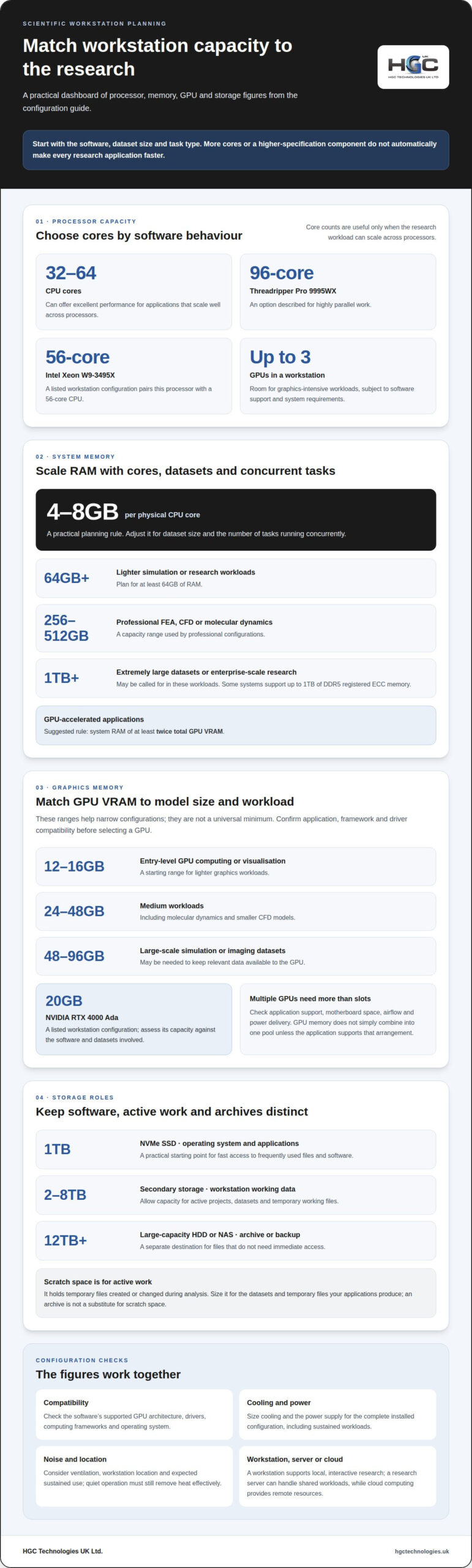
For applications that scale across processors, 32-64 CPU cores can offer excellent performance. A listed workstation configuration pairs the Intel Xeon W9-3495X with a 56-core CPU; select by software behaviour, not core count alone. A practical planning rule is 4-8GB of RAM per physical CPU core, adjusted for dataset size and concurrent tasks.
For lighter simulation or research workloads, plan for at least 64GB of RAM. Professional FEA, CFD or molecular dynamics configurations may use 256-512GB, while extremely large datasets or enterprise-scale research may call for 1TB or more. A system supporting up to 1TB of DDR5 registered ECC memory offers high-capacity options. For GPU-accelerated applications, a suggested rule is system RAM of at least twice total GPU VRAM.
Cooling, power and noise considerations
High-core-count CPUs and multiple GPUs generate heat during sustained workloads, so cooling must suit the installed hardware and operating environment. The power supply must support the full configuration, including processor, graphics cards, memory and storage. Account for their combined demands rather than sizing it around a single component.
Fan speed and airflow affect noise, which matters when a workstation is near researchers. Consider its location, ventilation and expected sustained use when specifying cooling. A quiet setup must still remove heat effectively, particularly during long simulation runs.
GPU acceleration and application compatibility
A graphics processor can accelerate scientific computing when an application is designed to use it. Check which GPU architectures, drivers and computing frameworks your software supports before choosing hardware. For custom workstations for scientific research, confirm those requirements before comparing graphics specifications. A powerful card offers little benefit if the application cannot use its processing capabilities.
Use the model size and workload to guide VRAM capacity. Entry-level GPU computing or visualisation calls for 12-16 GB of VRAM. Medium workloads, including molecular dynamics and smaller CFD models, suit 24-48 GB. Large-scale simulation or imaging datasets may need 48-96 GB to keep relevant data available to the GPU.
These ranges help narrow configurations, rather than define a universal minimum. A listed scientific workstation configuration pairs an NVIDIA RTX 4000 Ada GPU with 20 GB of memory. That capacity sits between the entry-level and medium-workload ranges, so assess it against the software and datasets involved.
Compatibility involves more than VRAM. Confirm that the application supports GPU acceleration, then match its supported framework and driver requirements to the operating system and graphics hardware. Check whether the software can use multiple GPUs and whether its workload benefits from parallel processing. One application may suit a single-card configuration, while another may scale across several devices.
Multiple GPUs also affect the system’s requirements. The motherboard must accommodate the cards, while airflow and power delivery must support the complete configuration. Account for memory per GPU: capacity does not simply combine into one larger pool unless the application supports that arrangement.
Before settling on a configuration, list the research applications, model sizes and tasks the workstation must handle. Match each application to its GPU support and memory needs, then prioritise the most important workloads. This helps tailor custom workstations for scientific research to actual software demands, rather than paying for capacity an application cannot use.
NVMe storage and scratch space
Separate the operating system, research software, active project files and long-term archives. A 1TB NVMe SSD is a practical starting point for the operating system and applications. NVMe storage gives the workstation fast access to frequently used files, helping keep software and active work together without mixing every storage role.
Scratch space holds temporary files created or changed during analysis. A simulation, for example, may read source data, write intermediate results and generate output files before completion. Fast storage for these working files can make repeated access more responsive. Size scratch capacity for the datasets and temporary files your applications produce, rather than treating it as archive space.
Allow 2-8TB of secondary storage for workstation working data. This gives active projects room beyond the operating-system drive, while making it easier to organise datasets separately from software. Consider how much data must remain available locally, how often projects change and whether several tasks will use the same storage. These decisions affect usable capacity and configuration cost.
Plan a separate destination for files that no longer need immediate access. Large-capacity HDDs of 12TB or more, or a NAS, can support tertiary archive or backup storage. An archive is not a substitute for scratch space: active simulations need access to current working files, whereas retained results may be accessed less often. Keep backup planning distinct from the workstation’s working-drive capacity.
Map the data path before choosing drives: identify software and operating-system needs, estimate active project storage, then allocate scratch space and archive capacity. For a project with a large source dataset and frequent intermediate outputs, prioritise suitable NVMe scratch storage alongside secondary working storage. This approach matches storage to research workflows, keeps temporary files off archive drives and makes capacity choices easier to explain.
CPU core counts and memory bandwidth
Choose a CPU based on how your analysis uses parallel processing and moves data. Workloads that divide calculations across threads can benefit from more cores. Tasks that rely on only a few threads may gain less from a high core count, so consider application behaviour alongside processor specifications.
For well-scaling scientific applications, 32-64 CPU cores can offer excellent performance. This is a useful range to assess for modelling and computational analysis, but it isn’t a universal target. Identify which applications dominate your work, then consider whether they can keep that many cores busy during typical runs.
Processor examples help illustrate the available options. The Intel Xeon W9-3495X configuration has a 56-core CPU, placing it within that range. At a different scale, the Threadripper Pro 9995WX configuration has 96 cores. Compare these choices against software behaviour and task size, rather than assuming the processor with more cores will always complete your work faster.
Memory bandwidth matters when processors need to read and write substantial amounts of data. More memory channels can increase the pathways between the processor and system memory, provided the configuration populates those channels appropriately. A dual-socket EPYC 9275F system provides 12 memory channels per socket, an important specification for bandwidth-sensitive workloads.
Capacity and bandwidth solve different problems. A large dataset may require substantial RAM, while analysis can still be constrained if processors cannot access data quickly enough. A planning rule of 4-8GB of RAM per physical CPU core can help frame capacity, but memory-channel support and workload behaviour also influence the configuration.
For a balanced specification, document the applications and analysis tasks, assess their core use, then match processor and memory-channel capacity. Discuss a workstation configuration suited to your research computing requirements.
HGC Technologies UK Ltd.: Custom‑built PCs
HGC Technologies UK Ltd. builds custom PCs for organisations that need systems configured around scientific workloads. Once you’ve identified the applications, processor needs, memory capacity, GPU compatibility and storage priorities, these requirements provide a practical basis for specifying a workstation.
Consider a custom-built PC when standard configurations don’t align with your research workflow or hardware priorities. A clear specification connects the computing requirements discussed above with a suitable system, without making core count or any single component the only consideration.
To discuss a workstation for your research requirements, contact HGC Technologies UK Ltd.
Turn your research requirements into a specification
Turn your project needs into a brief that supports clear hardware decisions. Record the applications you run, the size and type of data they handle, and how researchers will use the system. Include priorities for local computing, shared access and anticipated changes to the workload. This gives a custom workstation specification a practical purpose: supporting your team’s work rather than chasing components in isolation.
For organisations equipping teams, HGC Technologies UK Ltd. also supplies bulk refurbished Dell, Lenovo and HP laptops. These serve broader device requirements, while a custom-built PC can suit research workloads that call for a tailored desktop system.
When you’re ready to discuss your requirements for custom workstations for scientific research, contact HGC Technologies UK Ltd. A well-defined brief is a strong starting point for your next research computing decision.
Frequently Asked Questions
How many cores do I need?
For scientific software that scales well across processors, 32-64 cores can be a strong starting point. If your main application relies on fewer threads, additional cores may not improve its performance. Use a representative analysis or simulation as your test case: software behaviour, dataset size and the number of concurrent tasks all influence how much processing capacity your team can use effectively.
What specifications should a workstation for scientific research have?
Choose specifications around the applications and data your team uses. For example, a workstation running simulation software, visualisation tools and large datasets needs suitable processor, memory, graphics and storage capacity, as well as hardware compatible with those applications. Consider how researchers access files and whether work happens locally or across a team. The specification should support the whole workflow, not just one demanding task.
How much do custom scientific research workstations cost in the UK?
There is no single fixed UK price for a custom scientific workstation. The total depends on the processor, memory, graphics hardware, storage and other configuration requirements. A system designed for a specific research workload may differ considerably from one intended for general computing. HGC Technologies UK Ltd. builds custom PCs, with pricing available on request so the quote reflects the required configuration rather than an assumed standard price.
Which CPUs are best for scientific computing, simulation and data analysis?
The best CPU depends on whether your software benefits from many processing cores or prioritises other processor capabilities. The Intel Xeon W9-3495X, with 56 cores, and Threadripper Pro 9995WX, with 96 cores, are examples of high-core-count options. For a useful comparison, assess how your particular simulation or analysis software uses available cores, rather than selecting by model name or core count alone.
How much RAM and what type of memory do scientific workloads need?
RAM needs depend on dataset size, software and the number of tasks running together. A useful planning guide is 4-8GB per physical CPU core, with registered ECC memory available in high-capacity configurations. ECC memory is designed to detect and correct certain memory errors. For a research team, consider whether the system’s supported memory type and capacity suit both current analysis and anticipated project demands.
What GPU options are best for machine learning, visualisation and computational research?
Match GPU memory and software support to the models and visualisation tasks you run. Entry-level GPU computing or visualisation may suit 12-16GB of VRAM; medium workloads, including molecular dynamics and smaller CFD models, may need 24-48GB. Larger simulation or imaging datasets can call for 48-96GB. For machine learning, check that the framework and application support the selected GPU before specifying the workstation.

BYOD Policy vs Corporate-Owned Refurbished Laptops: The 2026 Strategic Comparison
The long-held belief that letting employees use their own devices saves your budget is a costly misc

Choosing a Reliable Ex-Corporate Laptop Supplier: A 2026 Procurement Guide
Purchasing a blind-pallet of technology isn't a procurement strategy; it's a gamble that your IT inf
Bespoke PC Builds for Business: A 2026 Strategic Procurement Guide
The standard corporate workstation is no longer a safe investment. It's a bottleneck disguised as a