

Troubleshooting Common Refurbished Laptop Issues: A Professional B2B Guide
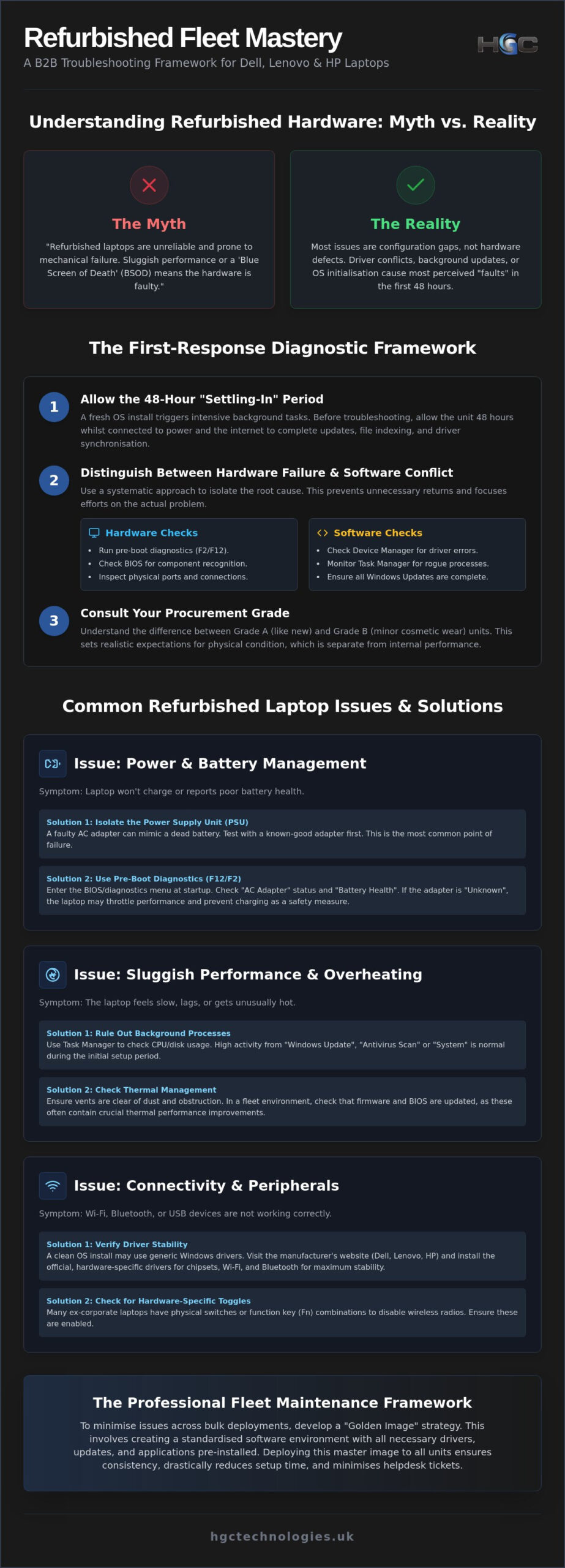
The assumption that refurbished hardware is inherently prone to failure is a misconception that costs businesses thousands in unnecessary returns and lost productivity. Professional-grade units from brands like Dell, Lenovo, and HP are engineered for longevity, which means most performance hurdles are actually configuration gaps rather than mechanical defects. Mastering troubleshooting common refurbished laptop issues is the difference between maintaining a high-performing fleet and managing a desk full of helpdesk tickets. You’ve likely felt the frustration of fleet downtime or the nagging anxiety over battery health in ex-corporate units, but these challenges shouldn’t dictate your operational success.
We’ve designed this guide to help you master the technical nuances of refurbished hardware with expert strategies for identifying, fixing, and preventing performance bottlenecks. You’ll gain the insights needed to maximise the lifespan of your assets and reduce return rates through a systematic B2B approach. We’ll examine critical areas such as battery calibration, driver stability, and thermal management to ensure your bulk deployments remain reliable. By the end of this article, you’ll have a professional maintenance routine that transforms how you manage your technology lifecycle.
Key Takeaways
- Differentiate between mechanical failure and configuration gaps to ensure your fleet remains operational without unnecessary returns.
- Master the systematic steps for troubleshooting common refurbished laptop issues, including power management and thermal throttling.
- Learn to identify and resolve connectivity hurdles by managing driver stability and hardware-specific toggles on corporate units.
- Develop a robust “Golden Image” strategy to standardise software environments across bulk Dell, Lenovo, and HP deployments.
- Establish a professional fleet maintenance framework designed to reduce helpdesk tickets and maximise the lifespan of refurbished assets.
Understanding Refurbished Hardware: Myth vs. Configuration
Professional refurbishment is a strategic procurement standard, not a compromise. For UK businesses looking to scale their IT infrastructure, these units offer a high-performance alternative that simultaneously addresses the global e-waste problem. However, a common barrier to adoption is the confusion between “used” hardware and “professionally refurbished” assets. Whilst a used laptop might carry the previous owner’s digital clutter and hardware wear, a refurbished unit from a specialist wholesaler undergoes a rigorous restoration process to meet enterprise-grade standards. Effective troubleshooting common refurbished laptop issues starts with acknowledging that these machines are intended to perform as new, yet they often face initial configuration hurdles that users mistake for hardware failure.
Most perceived “faults” in the first week of deployment are actually software-based synchronisation tasks. When a laptop is wiped and a clean Operating System is installed, the hardware needs time to settle into its new environment. This period of adjustment is where most helpdesk tickets originate. By establishing a professional baseline for hardware expectations in 2026, IT managers can distinguish between a genuine component defect and a simple driver conflict. High-grade Dell, Lenovo, and HP units are built for a ten-year lifecycle; a few years of corporate use does not exhaust their utility, provided the software environment is correctly managed.
The Refurbishment Lifecycle
The journey of an ex-corporate machine involves more than a simple wipe. Every unit is decommissioned from its original environment, data-sanitised to government standards, and then re-imaged with a fresh OS. This process ensures security but can lead to minor initial friction. The first 48 hours of deployment are critical because the system will be aggressively downloading background updates and indexing files. Before you begin technical interventions, it is vital to check the refurbished laptop grades explained in your procurement documentation. Understanding whether a unit is Grade A or Grade B helps you set realistic expectations for physical wear versus internal performance.
Hardware Failure vs. Software Conflict
Distinguishing between a terminal hardware fault and a temporary software clash is essential for reducing return rates. A “Blue Screen of Death” (BSOD) is frequently interpreted as a sign of a dying motherboard, yet in the context of refurbished hardware, it is almost always a result of a legacy driver attempting to communicate with a new Windows build. Similarly, if a laptop feels “sluggish” out of the box, it is likely the result of background Windows Update processes or anti-virus scans rather than a failing processor. A professional burn-in test is the gold standard for ensuring refurb reliability before a unit ever reaches a client’s desk. If a unit has passed this rigorous stress test, any subsequent performance dips are likely environmental rather than mechanical.
Power and Battery Management: Troubleshooting Charging Issues
Power failures are often perceived as the “death knell” for a device, but in the B2B sector, they are frequently misdiagnosed symptoms of environmental factors. The primary concern for most fleet managers is a unit that seemingly won’t hold a charge; however, before assuming a battery cell has reached the end of its chemical life, it’s essential to isolate the power supply unit (PSU) from the internal hardware. A faulty AC adapter can mimic a dead battery by failing to provide sufficient wattage to both power the machine and charge the cells simultaneously. Sourcing your fleet from a reliable UK laptop wholesaler ensures that every unit has already undergone these diagnostic checks, significantly reducing the burden on your internal support team.
Professional-grade hardware from Dell, Lenovo, and HP includes robust pre-boot diagnostics. Accessing these via the F12 or F2 menus allows you to view the “AC Adapter” status and “Battery Health” percentage directly. If the BIOS reports the adapter as “Unknown,” the laptop will often throttle performance and refuse to charge as a safety precaution. This systematic approach is a cornerstone of troubleshooting common refurbished laptop issues efficiently. By identifying whether the issue lies with the wall outlet, the cable, or the internal charging circuit, you can avoid unnecessary hardware replacements.
BIOS and Firmware Power Settings
Many ex-corporate units arrive with “Peak Shift” or “Battery Charge Configuration” enabled. These settings are designed to preserve battery longevity by preventing the unit from charging past 50% or 80% during specific hours. If a user reports a laptop “stuck” at a specific percentage, check the BIOS power management tab before ordering a replacement. Additionally, ensure the firmware is up to date. Many USB-C charging “handshake” failures on modern Dell and HP units are resolved through a simple BIOS update that improves power delivery protocols and communication between the device and the charger.
Step-by-Step Power Reset
Static electricity build-up on the motherboard can prevent a laptop from initiating its boot sequence or recognising a charger. A “Hard Reset” is the professional solution for clearing these internal capacitors and resetting the power controller. Follow this sequence to resolve static-related power issues:
- Disconnect the PSU and all external peripherals, including docking stations and USB drives.
- Ensure the device is fully powered down; if the battery is external, remove it from the chassis.
- Press and hold the power button for exactly 30 seconds to discharge the motherboard’s internal capacitors.
- Reconnect only the PSU and observe the charging LED behaviour before attempting to boot the system.
This process often restores functionality to units that appear “dead” or unresponsive to power input. It is a simple yet effective technique that should be the first step in any professional maintenance routine for bulk deployments.
Effective hardware management extends beyond laptops to the mobile devices that keep teams connected; for professional repairs across the UK, irepairman.co.uk provides specialised services for tablets and smartphones.
Maintaining hardware integrity often requires both physical protection and technical service; for those managing mobile assets, accessing expert iPhone repair Kildare is essential for long-term device health.
Optimising Performance: Resolving Lag and Overheating
Performance bottlenecks in refurbished units are rarely due to a lack of raw processing power. High-tier business machines from Dell, Lenovo, and HP are built to handle intensive workloads, yet they might feel sluggish during initial deployment. This is often the result of aggressive background telemetry or unoptimised Windows power settings rather than hardware degradation. Effective troubleshooting common refurbished laptop issues requires a shift from viewing age as a factor to viewing configuration as the primary driver of speed. Most “bloatware” in a B2B context isn’t third-party games, but rather redundant corporate management tools or unconfigured OS features that run silently in the background.
Thermal throttling is a silent performance killer. When a processor reaches specific temperature thresholds, it intentionally slows down to prevent damage, leading to noticeable lag. Whilst professional wholesalers clean internal components, dust can accumulate quickly in storage or during transit. If troubleshooting reaches its limit and resources are still pegged at 100%, consider whether the specific workload requires a RAM upgrade. Managing resource-heavy background services, such as Windows Search Indexing or aggressive anti-virus scans, can also reclaim significant processing overhead without any hardware expenditure.
Thermal Management and Fan Noise
Business laptops are designed for high-density environments, meaning their cooling systems are robust but sensitive. Use compressed air safely by holding the fan blades in place with a non-conductive tool; allowing them to spin freely can generate an electrical charge that damages the motherboard. Additionally, distinguishing between “coil whine”—a high-pitched hum common in modern electronics—and a grinding mechanical fan failure is vital for accurate diagnostics. Adjusting your Windows “Power Plans” to a balanced setting often provides the best cooling-to-performance ratio for general office tasks, ensuring the fans don’t work harder than necessary.
Disk and Memory Optimisation
Storage bottlenecks are the most frequent cause of “system hang” errors. Even though SSDs don’t have moving parts, they still require monitoring via SMART (Self-Monitoring, Analysis, and Reporting Technology) data tools to verify health and longevity. Technical audits often reveal that bulk Dell refurbished laptops often benefit from a fresh driver stack rather than relying on generic Windows drivers. This ensures that the NVMe controllers and chipset components communicate with maximum efficiency. Standardising your driver deployment across a fleet eliminates the minor software conflicts that contribute to perceived lag.
Connectivity and Peripheral Synchronisation
Connectivity is the backbone of any professional workflow, yet it remains one of the most frequent sources of frustration during initial hardware rollouts. When a device fails to see a local network or refuses to pair with a Bluetooth peripheral, it’s rarely a sign of a faulty internal card. Instead, these hurdles usually stem from the “clean install” nature of professional refurbishment. Troubleshooting common refurbished laptop issues in the realm of networking requires a methodical look at how the Operating System communicates with the specific wireless hardware. If you’re managing a fleet, ensuring that every unit is correctly synchronised with your office peripherals is essential for maintaining high productivity levels.
One of the most overlooked solutions is the “Physical Switch” trap found on legacy corporate models. Older ex-corporate units, particularly certain legacy Dell Latitude or Lenovo ThinkPad models, occasionally feature a physical Wi-Fi toggle switch located on the side or front of the chassis. If this switch is bumped during transit or cleaning, the software will report the wireless adapter as “Not Found” or “Disabled” regardless of how many drivers you reinstall. Always verify the physical state of the hardware before diving into complex software configurations to save your support team valuable time.
The Driver Synchronisation Process
Relying on Windows Update to find the correct networking drivers is a common mistake in B2B environments. Whilst Windows is excellent at finding generic drivers that provide basic functionality, generic Windows drivers often fail to support specialised laptop functions such as Wi-Fi 6E protocols or advanced Bluetooth power management. To resolve this, utilise vendor-specific tools like Dell Command Update, Lenovo Vantage, or HP Support Assistant to automate the driver alignment process. Manually installing the “Chipset” and “Management Engine” drivers is also a critical step, as these components act as the traffic controllers for all internal and external I/O communication.
External Display and Docking Issues
Docking station compatibility is a common helpdesk hurdle that often presents as flickering screens or “No Signal” errors over USB-C. These issues are almost always resolved by updating the docking station firmware, a step that is frequently skipped during standard laptop setup. Because the dock acts as a bridge between the laptop and multiple peripherals, its internal software must be aligned with the laptop’s BIOS. Furthermore, ensure your power supply unit (PSU) provides enough wattage; a dock requires significant overhead to power both the connected monitors and the laptop’s internal charging circuit simultaneously. If you want to ensure your next deployment is seamless and free from these connectivity quirks, partner with a specialist UK wholesaler that prioritises rigorous I/O testing.
The Fleet Maintenance Framework for UK Resellers
Establishing a robust operational framework is the final step in transitioning from reactive support to proactive fleet management. For UK resellers and IT providers, the challenge lies in maintaining consistency across large shipments of hardware. Relying on a professional wholesale laptop distributor UK provides a solid foundation, but your internal QA process is what ensures zero-day reliability for the end user. By implementing a systematic approach to troubleshooting common refurbished laptop issues at the point of entry, you can identify the rare outlier before it reaches a client’s desk, protecting your reputation and reducing long-term support costs.
A central pillar of this framework is the “Golden Image”, which is a pre-configured software environment that includes all necessary drivers, security patches, and corporate settings. Standardising this image across your bulk Dell, Lenovo, and HP deployments prevents recurring software conflicts that often masquerade as hardware quirks. Additionally, for high-priority corporate contracts, implementing a 48-hour “Soak Test” is highly recommended. This involves running the units under a simulated workload to stress-test the thermal and power systems. If a unit passes this window without a crash or thermal throttle, it’s statistically likely to remain stable for years to come.
Standardising Deployment Procedures
Technicians should follow a strict checklist during the unboxing and initial configuration phase. This includes verifying that BIOS settings, such as Secure Boot and TPM (Trusted Platform Module), are uniform across the entire fleet to ensure compatibility with modern security standards. Leveraging wholesale refurbished computers UK allows businesses to build cost-effective hardware redundancy into their procurement strategy. Having a small percentage of “buffer” units on hand means you can swap out a device for a warranty claim without interrupting the client’s operations.
Establishing a Maintenance Schedule
Long-term reliability is a product of consistent care. We recommend a bi-annual maintenance cycle for high-use units, which includes a thorough internal cleaning and an inspection of the thermal paste. Monitoring battery wear levels through manufacturer-specific software allows you to anticipate replacements before they become a productivity bottleneck. When troubleshooting common refurbished laptop issues, distinguish between a quick configuration fix and a genuine component failure that requires escalation. If a problem persists after a BIOS update and a hard reset, it’s time to initiate a professional warranty claim.
Looking to scale your IT infrastructure? Explore our bulk refurbished Dell, Lenovo, and HP inventory today.
Strategic Fleet Resilience for the Modern Business
Success in managing a refurbished IT estate depends on shifting from reactive support to proactive maintenance. By prioritising vendor-specific driver alignment and implementing a rigorous “Golden Image” strategy, you can eliminate the configuration gaps that often masquerade as hardware defects. Mastering the technical nuances of troubleshooting common refurbished laptop issues ensures your team remains productive whilst significantly reducing unnecessary return rates. These enterprise-grade units from Dell, Lenovo, and HP are engineered for longevity; with the right maintenance framework, they’ll continue to provide strategic value for years.
As a specialist wholesaler with national UK distribution, we combine professional B2B technical expertise with a commitment to high-grade hardware. We’re dedicated to helping you scale your infrastructure through reliable, high-performance assets that meet the demands of corporate procurement. Secure high-quality bulk refurbished laptops for your business today and experience the stability of professionally restored hardware. Your journey towards a more sustainable and cost-effective technology lifecycle starts with a partner you can trust.
Frequently Asked Questions
Is it normal for a refurbished laptop to have a shorter battery life?
It’s normal for a refurbished battery to have slightly less capacity than a brand-new unit, but it should still provide several hours of reliable use. Batteries are chemical consumables that degrade over time; however, professional wholesalers test these components to ensure they meet a minimum health percentage. If the runtime is exceptionally short, check your BIOS power settings for background tasks that might be draining the cell prematurely.
Why is my refurbished laptop fan so loud during basic tasks?
Excessive fan noise is often caused by the Operating System performing intensive background tasks like Windows Update or file indexing. Because refurbished machines often start with a clean OS install, they spend the first few hours of deployment synchronising data and downloading security patches. If the noise persists, ensure the vents are clear of obstructions and check that your Windows power plan is set to Balanced rather than High Performance.
How do I find the correct drivers for an ex-corporate Dell or Lenovo laptop?
The most reliable way to find drivers is by using the unique Service Tag or Serial Number found on the bottom of the chassis. Visit the official support site for Dell, Lenovo, or HP and enter this code to access the exact driver stack for your specific hardware configuration. Automating this process with vendor-specific tools like Dell Command Update is a key part of troubleshooting common refurbished laptop issues across a large fleet.
What should I do if my refurbished laptop screen starts flickering?
Screen flickering is usually a software conflict rather than a hardware defect. Start by updating your graphics drivers and checking the refresh rate settings in your display properties. If the unit is connected to a docking station, flickering often indicates that the dock’s firmware is outdated or the power supply isn’t providing enough wattage to support multiple external monitors simultaneously.
Can I upgrade the RAM or SSD in a refurbished business laptop myself?
Business-grade laptops are engineered for serviceability, making RAM and SSD upgrades straightforward for IT professionals. Most Dell Latitude, Lenovo ThinkPad, and HP EliteBook models feature accessible bottom panels that allow you to expand memory or storage without voiding your warranty. This modular design is a primary reason why ex-corporate units are so popular for long-term B2B deployments and hardware redundancy.
Why does my refurbished laptop feel hot to the touch?
Refurbished laptops may feel hot if the CPU is being throttled by high-resource background telemetry or blocked air intake. Ensure the device is used on a flat, hard surface to allow maximum airflow through the underside vents. If the heat persists whilst the machine is idle, use Task Manager to identify any runaway processes that are pinning the processor at high usage levels.
What is the “Hard Reset” method for fixing power issues?
The Hard Reset involves discharging all residual electricity from the motherboard’s capacitors to reset the internal power controller. To perform this, disconnect the AC adapter and any external peripherals, then press and hold the power button for exactly 30 seconds. This technique is often the first step in troubleshooting common refurbished laptop issues related to unresponsiveness or failure to initiate the charging sequence.
How can I check the original specifications of my refurbished unit?
You can verify the original factory specifications by entering your Service Tag or Serial Number into the manufacturer’s support portal. This provides a detailed manifest of the components installed at the point of manufacture, including the processor model, original RAM capacity, and display type. Alternatively, accessing the BIOS menu during bootup will show you the current hardware configuration as recognised by the system firmware.
Custom Built PCs for Software Development UK: 2026 Buying Guide
Investing in the latest consumer-grade hardware for your engineering team might actually be the most

Enterprise Server Hardware UK: The 2026 Strategic Procurement Roundup
With memory prices surging by 130% and lead times for new components stretching beyond nine months,

Wholesale Computers UK: The 2026 Guide to Strategic IT Sourcing
Sales volumes for refurbished PCs in the UK doubled in a single year leading into 2026, yet many ent
Comments are closed.