
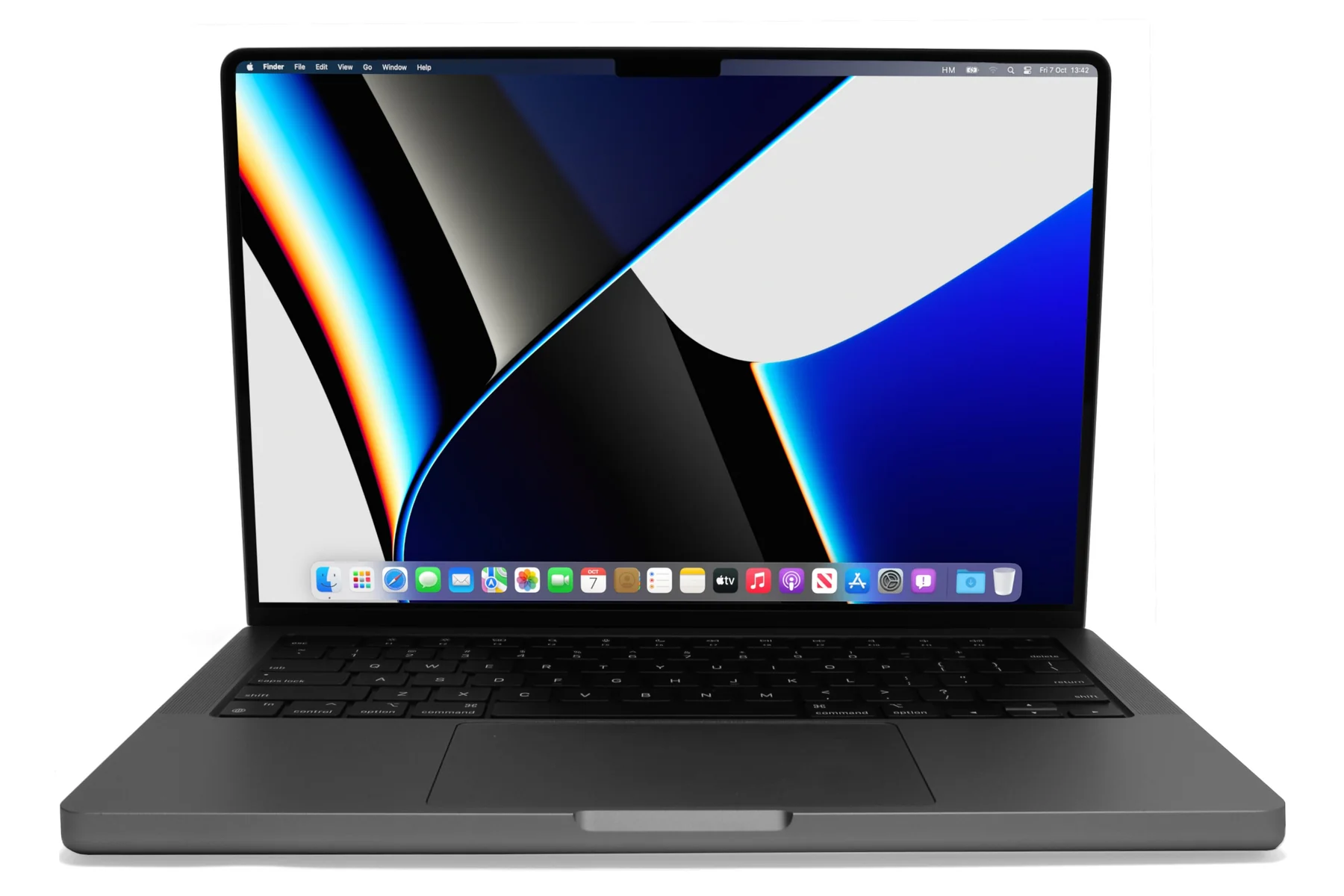
How to Prepare Company MacBooks for Sale: Activation Lock, Find My and Apple Business Manager
Company MacBooks are worth good money on the used market — and a MacBook that is still linked to an Apple ID is worth almost nothing. Activation Lock turns a £500 laptop into a paperweight that no reputable buyer will touch, and it is the number one reason Apple devices come off a collection at a lower figure than the seller expected.
This is the checklist we ask every seller to complete on every Mac before we collect. None of it is difficult. All of it has to be done on the device, by someone who knows the Apple ID password, before it leaves the building.
Why a reset is not enough
Apple’s Find My feature includes Activation Lock. When Find My is on, the Mac’s identity is tied to the Apple ID that enabled it, and that link is held on Apple’s servers, not on the machine. Erase the drive, reinstall macOS, replace the storage: the lock survives all of it, because it is not stored on the Mac. The next person to set it up is asked for the original owner’s Apple ID and password, and without them the device cannot be used.
There is no legitimate way round it. Apple will only remove Activation Lock with proof of purchase in the original owner’s name, and refurbishers cannot do that on your behalf. A locked Mac is not a “wipe it and it’ll be fine” problem; it is a parts-only machine.
The checklist, per device
1. Sign out of iCloud and turn off Find My
On the Mac: System Settings → [Apple ID name at top] → iCloud → Find My Mac → turn off, entering the Apple ID password when asked. Then scroll to the bottom of the Apple ID pane and Sign Out. On older macOS it is System Preferences → Apple ID. Signing out without first turning off Find My Mac can leave the lock in place, so do it in that order.
2. Sign out of everything else
iMessage (Messages → Settings → iMessage → Sign Out), the App Store, and any Microsoft 365 or Google accounts. This is mostly for the leaver’s privacy; it does not affect Activation Lock but it avoids their messages arriving on a machine they no longer own.
3. If the Mac is in Apple Business Manager, release it
Organisations that buy Macs through Apple or an authorised reseller often have them enrolled in Apple Business Manager (or Apple School Manager) and assigned to an MDM such as Jamf, Kandji, Mosyle or Intune. A Mac in ABM will re-enrol itself into your management on first boot after a wipe — the Apple equivalent of the Windows Autopilot problem. In Apple Business Manager go to Devices, find the serial number, and choose Release. This is permanent and cannot be undone, which is exactly what you want for a device you are selling. Unassign it from your MDM as well.
4. Erase the Mac
On Apple silicon and T2 Macs: System Settings → General → Transfer or Reset → Erase All Content and Settings. This removes your data, signs out of Apple ID and, if you did step 1, leaves the machine clean. On older Intel Macs, boot to Recovery (Cmd+R), use Disk Utility to erase the drive, then reinstall macOS. If you skip this we will do it — but the Find My sign-out in step 1 cannot be skipped by anyone but you.
5. Check the serial is clear
When the Mac restarts it should show the Setup Assistant with a language choice, with no request for a previous owner’s Apple ID. If it asks for one, Activation Lock is still on and you need to go back to step 1 — or, if the person who set it up has left the company, to whoever still has access to their Apple ID.
The leaver problem
The most common failure is not technical. It is a MacBook that was set up with a personal Apple ID by someone who left the company six months ago. Nobody knows the password; Apple will not help without proof of purchase in that person’s name; the device is locked for good. The only cure is prevention: company-owned Macs should be set up with a managed Apple ID through Apple Business Manager, and IT should confirm Find My is off as part of the leaver process, not the disposal process.
If you have locked Macs now, we will still buy them, but priced as parts rather than as working laptops. Tell us up front and we will give you the honest figure for both; it is usually a large difference, which is why this article exists.
Firmware passwords and MDM locks
Two smaller things. Some organisations set a firmware password (Intel Macs) or a recovery lock (Apple silicon, set via MDM). Both stop the Mac being reinstalled and both must be removed before sale. And if the Mac was managed by MDM, check that the management profile has actually been removed after you unassign it — a stale profile will not lock the device, but it will confuse the next owner.
What we do on our side
Every Mac we collect is checked for Activation Lock and MDM enrolment at goods-in, before it goes anywhere near erasure or resale. Drives are sanitised with our MIST platform to NIST SP 800-88 and IEEE 2883, and a certificate is issued against each serial number. Intel Macs from 2019–2020 are now past the point where they will receive new versions of macOS, so if you have those, the time to sell is now rather than later.
Planning to sell company Macs? Send the model numbers and quantity to info@hgctechnologies.uk or WhatsApp us on 0800 208 8010. Details of how we buy, erase and pay are on our IT buyback page, and the Windows equivalent of this article is here.
Selling your equipment?
We buy used laptops, MacBooks, desktops and servers with free collection anywhere in mainland UK and certified data erasure. More on how it works for schools and academy trusts, offices that are closing or moving, MSPs and IT resellers, and for sellers in Watford and Hertfordshire or London. Or go straight to our IT buyback page.

How to Remove Company Laptops from Intune and Autopilot Before You Sell Them
A factory reset does not release a managed Windows laptop from your Microsoft tenant. Here is the In

What a Data Erasure Certificate Should Contain (and How to Spot One That Proves Nothing)
Drive serial, standard, method, verification, operator, failures and a checkable company identity: t

The Seven Documents Your Company Should Receive When It Sells Its IT Equipment
Manifest, seller declaration, destruction authorisation, erasure certificates, asset register, Waste