
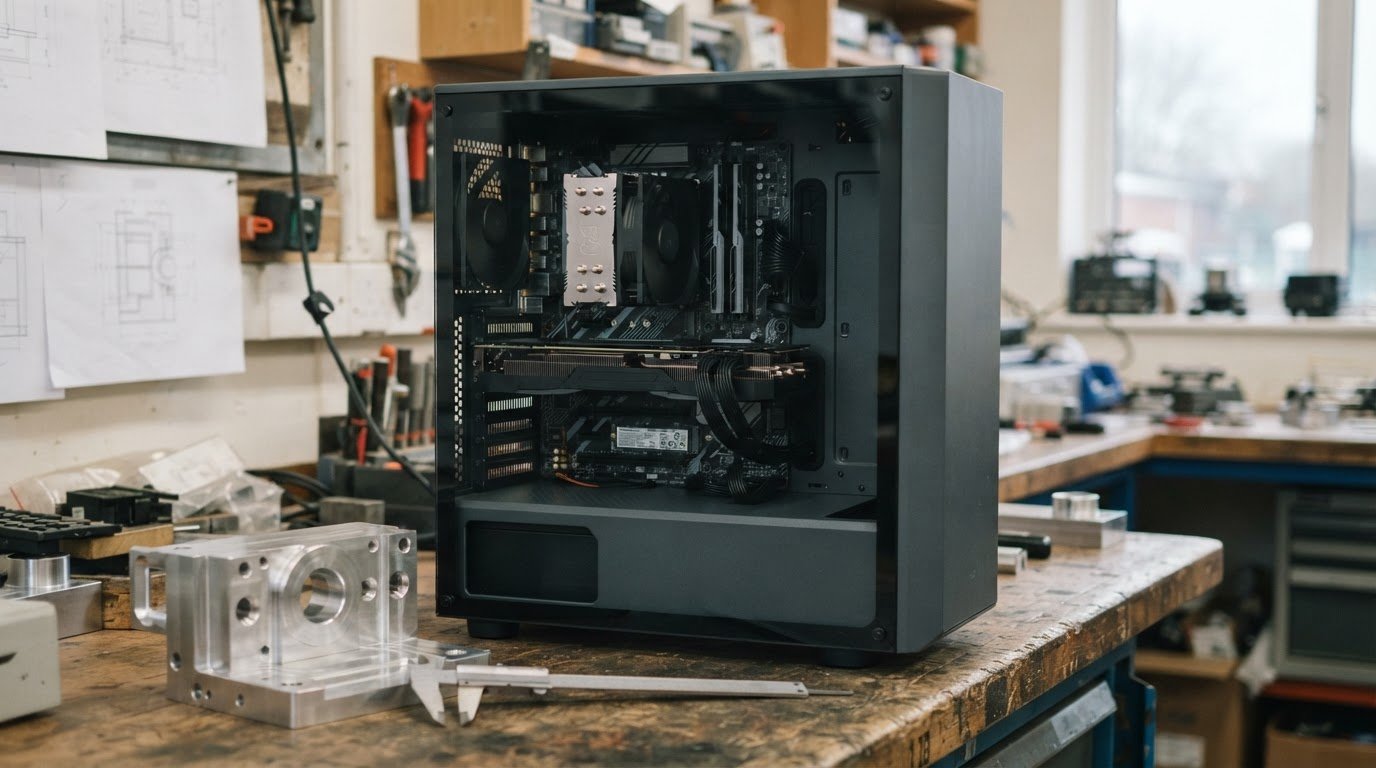
Custom CAD and Engineering PCs for RAM and GPU Choices
For professional CAD, 32 GB of RAM is a practical starting point. A custom PC for CAD and engineering can scale to 64 GB or 128 GB for larger assemblies and more demanding models, while the right graphics card depends on your software and workload.
Memory matters, but it isn’t the only decision when choosing a custom PC for CAD and engineering. A capable graphics card can support responsive modelling, while fast storage keeps active projects readily accessible. Balancing these components is more useful than choosing the highest specification in every category.
This guide explains how to match RAM and graphics to your CAD work, choose storage for applications and project files, and plan upgrades. It also covers power supply sizing and why allowing headroom above the system’s calculated power draw can support sensible component planning. You’ll get a practical framework for configuring a workstation around its actual workload, without paying for capacity you may not use.
Key Takeaways
- Match memory capacity to the size of your assemblies and the complexity of your engineering workload.
- Choose graphics by considering your CAD software, viewport demands and whether certified workstation-card support matters.
- Plan storage around your operating system, applications and active project files to keep work organised and accessible.
- Leave suitable power supply headroom and consider upgrade needs when balancing component protection with long-term value.
Consumer GPUs versus certified workstation cards
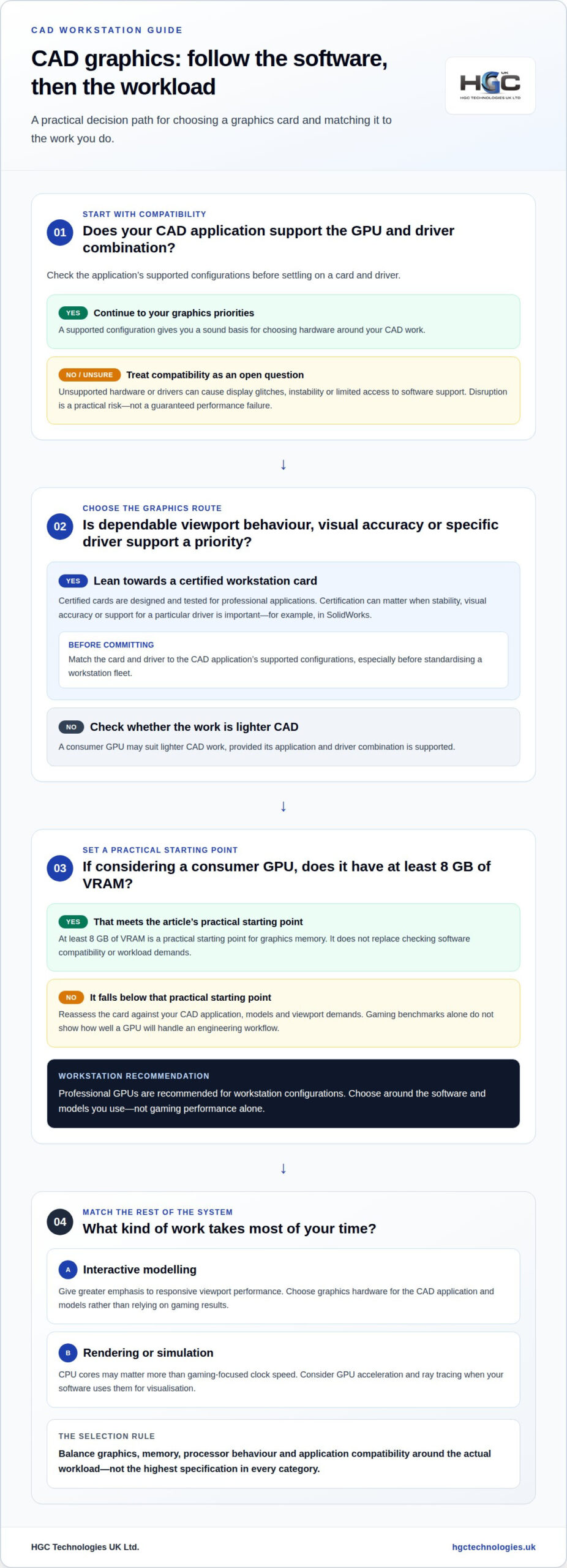
For a CAD workstation, choose graphics hardware around the software and models you use, not gaming performance alone. A consumer GPU with at least 8 GB of VRAM is a practical starting point for graphics memory, while professional GPUs are recommended for workstation configurations. Check whether your CAD application supports the card and driver combination you plan to use.
Gaming cards prioritise high clock speeds and frame rates in games. Certified workstation cards are designed and tested for professional applications, which can matter for visual accuracy, stability and software support. In SolidWorks, for example, certification may be important if dependable viewport behaviour and support for a specific driver are priorities. A gaming GPU may suit lighter CAD work, but gaming benchmarks alone do not show how well it will handle your engineering workflow.
Unsupported hardware or drivers can cause display glitches, instability or limited access to software support when CAD problems arise. The practical risk is disruption to modelling or review work, not a guaranteed performance failure. Before standardising a workstation fleet, match the GPU and driver to the CAD application’s supported configurations.
A gaming PC is usually configured to maximise game performance, while a CAD workstation balances graphics, memory, processor behaviour and application compatibility. For simulation or rendering, CPU cores may matter more than gaming-focused clock speed; interactive modelling places greater emphasis on responsive viewport performance. An AMD Ryzen system can be suitable for CAD, but choose components for the workload rather than the processor brand alone.
Custom-built workstations can cost 15-30% less than equivalent pre-built systems, according to the market estimate, but the comparison depends on equivalent components and support. Pre-built systems offer a single configured package; a custom build gives more control over component selection and upgrade planning.
For sustained workloads, a desktop workstation can deliver 30-60% more performance than a laptop with equivalent specifications, according to the market estimate. Choose a laptop for mobility between sites; choose a desktop for longer engineering sessions where cooling and sustained performance matter more.
Workstation upgrade paths, support and total cost of ownership
Plan a workstation around its CAD software, rendering workload and future upgrade needs. Processor choice, component compatibility and support all influence its long-term value.
Choosing a workstation for CAD and rendering
Separate interactive design from tasks that can use more processor cores. AutoCAD modelling may call for responsive performance, while rendering and simulation can benefit from parallel processing. GPU acceleration and ray tracing matter most when the software uses them for visualisation. A custom PC for CAD and engineering should reflect those actual tasks, not just the highest specification available. Include support and replacement components in your ownership planning. To discuss a tailored build, explore custom-built PC configurations.
Workstation recommendations by CAD software
Let your software and project scale shape the specification. For SolidWorks assemblies above 1,000 parts or large CATIA assemblies, 128 GB of RAM is appropriate. AutoCAD users should distinguish 2D drafting from demanding 3D work, which places different demands on graphics and memory. Match each application to compatible hardware and drivers. This keeps configuration decisions grounded in the software and projects your team uses.
CAD workstation build tiers and pricing
Think in tiers: a balanced system for everyday CAD, a higher-capacity build for engineering and rendering, or an enterprise workstation for extensive models. In the UK, the market range for CAD and engineering workstations is £1,500 to £3,300, with a median of about £2,200, based on samples collected on 5 November 2026. Compare equivalent components, upgrade options and support to assess ownership value, rather than focusing only on the initial specification.
Processor performance for CAD workstations
Choose processor performance according to the tasks that take most time. A 16-core AMD Ryzen 9 9950X suits rendering and simulation, while a 24-core CPU can complete a rendering job in roughly half the time of a 12-core CPU. For a custom PC for CAD and engineering, consider whether future component changes can meet growing project demands. Compatible parts and a clear support route can help make later upgrades more manageable.
NVMe storage for active projects
NVMe storage keeps operating system files, CAD applications and project data readily accessible. A 1 TB NVMe SSD is a practical minimum for a CAD workstation. For active project libraries, 2 TB gives more room for working files and application data. Capacity matters because a full drive leaves less space for new models, saved versions and temporary files.
Plan the layout around your workflow. One NVMe drive can hold the operating system, applications and project files; separate drives make those roles easier to manage. A professional or enterprise configuration can use 1 TB for the operating system and applications, then 2-4 TB for active projects. For example, keeping a large assembly library on its own drive can simplify capacity planning without mixing it with system files.
Storage and memory serve different purposes. NVMe access can speed up opening and saving project files, while system memory holds data that applications are actively using. A faster drive won’t increase processor clock speed or remove a bottleneck in a single modelling thread. Its benefits are most apparent when your workflow regularly reads or writes large assemblies, drawings or render assets.
For redundancy, RAID 1 mirrors data across two NVMe drives, so the same files are written to both. This can provide real-time redundancy if one drive fails, but it isn’t a complete backup strategy. Accidental deletion or damaged files can affect mirrored copies too. Keep a separate backup of important CAD work, and consider where it is stored and how you would restore a project.
Choose storage capacity by reviewing the files your team keeps active, not just the size of one current model. Project libraries, linked references and saved versions all take up space. If active work is growing, allow room for both the operating environment and project files before choosing a drive configuration. This makes future expansion easier to plan and keeps storage aligned with your engineering workflow.
Power supply sizing and component protection
Power supply sizing affects the stability and upgrade capacity of CAD workstations. Start with the system’s calculated power draw, then allow 20-30% headroom above it. This margin accommodates demanding workloads more comfortably than choosing a unit that exactly matches the estimate. It also gives you room to consider future component changes without designing around today’s configuration alone.
Assess power demand across the whole system, not the graphics card alone. A processor running a simulation alongside an NVIDIA GPU rendering detailed models places different demands on the system than light drafting. Consider the processor, graphics card, memory and storage as one configuration. Sustained professional workloads can keep several components active, so base the power plan on the work the workstation will actually perform.
Headroom supports sensible upgrade planning, but it doesn’t replace checking component compatibility. Before building, list the current parts and likely upgrades, then size the power supply against the system’s calculated draw. If a future graphics card is planned, include its requirements rather than sizing only for the existing card. Revisit the calculation whenever the configuration changes.
Component protection also depends on how the system is assembled and used. Route cables so they don’t obstruct airflow, and make sure the power connections match the installed components. Don’t treat faster clock speeds or a larger GPU as isolated upgrades: either can change the demands on the overall build. A balanced configuration connects power planning with performance, reliability and ownership needs.
For a custom workstation, document the selected parts, calculated draw and intended upgrades together. That record makes future changes easier to assess and helps distinguish a suitable replacement from an incompatible one. A carefully planned power supply supports the combination of CAD modelling, rendering and simulation without relying on guesswork. If you’re planning a build around those professional workloads, discuss a tailored workstation configuration.
HGC Technologies UK Ltd.: Custom‑built PCs
HGC Technologies UK Ltd. builds custom PCs for businesses that need workstations tailored to their CAD and engineering workloads. Consider a custom build when standard configurations don’t match your software, project demands or upgrade priorities.
To define a suitable system, bring together the requirements covered in this guide: the applications you use, the complexity of your models, and whether your work involves rendering or simulation. Use these needs to guide decisions about memory, graphics, storage and future upgrades, so the specification fits your team’s professional tasks.
For teams sourcing devices more broadly, HGC Technologies UK Ltd. also supplies bulk refurbished Dell, Lenovo and HP laptops. Contact HGC Technologies UK Ltd. to discuss your workstation requirements.
Turn your workstation plan into a practical brief
Before specifying a new system, write a short brief describing the work it must support. Identify who will use it, which applications are essential, how projects move between colleagues, and what changes the team expects over time. This turns a broad hardware decision into a clear business requirement.
A custom PC for CAD and engineering should suit how your team works today while leaving room for sensible future decisions. Separate essential requirements from optional preferences, and note any constraints affecting daily use, such as desk space or shared project workflows. A clear brief also gives your organisation a useful reference when reviewing workstation needs later.
HGC Technologies UK Ltd. can help translate your requirements into a custom-built PC configuration. Contact HGC Technologies UK Ltd. to discuss a workstation for your engineering work and take the next step with confidence.
Frequently Asked Questions
RAM: How Much Memory Does a CAD Workstation Need?
For professional CAD, start with 32 GB of RAM, then size upwards for complex assemblies or several demanding applications open together. A useful planning step is to consider the largest project users will need to edit alongside their usual tools, rather than sizing only for a typical drawing. This helps avoid memory pressure interrupting work when projects become more complex.
What Does CAD Software Actually Need?
CAD software needs a balanced system: processor performance for calculations, graphics capability for the viewport, RAM for working data and storage for applications and files. The emphasis changes by task. Editing a 2D AutoCAD drawing differs from handling a detailed 3D model or running an engineering simulation. Identify the main workflow first, then prioritise the components that affect it most.
What PC specifications are recommended for CAD and engineering software?
A sensible professional starting point is 32 GB RAM, a graphics card with at least 8 GB of VRAM, and a 1 TB NVMe SSD. Treat these as a baseline, not a universal specification. For example, a user handling detailed models and rendering may need more capacity or graphics capability than someone producing simpler drawings. Software compatibility should guide component choices.
Which CPU is best for CAD workloads: high single-core speed or more cores?
For interactive modelling, prioritise strong single-core performance because some design operations rely heavily on one thread. Rendering and simulation can use more cores, so a higher core count may shorten those jobs. A 24-core CPU can complete a rendering task in roughly half the time of a 12-core CPU. Match processor choice to the work that consumes most time.
How much RAM is recommended for CAD, BIM, and engineering simulations?
Use 32 GB as a professional starting point, and consider 64 GB or 128 GB for large models, extensive BIM datasets or demanding simulations. The right capacity depends on model scale and how much software runs concurrently. If users regularly combine modelling tools with analysis or visualisation applications, plan memory for that combined workload rather than treating each programme in isolation.
Is a workstation GPU or gaming GPU better for professional CAD?
A certified workstation GPU is often the better fit when professional CAD support, driver validation and stable viewport behaviour matter. A gaming GPU may suit lighter work, but gaming performance alone doesn’t establish compatibility with a CAD application. For example, a team standardising SolidWorks systems should consider supported graphics configurations and drivers alongside VRAM and visualisation demands.
Custom-built video editing PCs for UK business projects
A video-editing PC should match the software, codecs and resolution your projects demand, not just b

Refurbished ultrabooks for executives and business teams
Refurbished doesn’t mean unsuitable for work. Refurbished ultrabooks for executives are previously
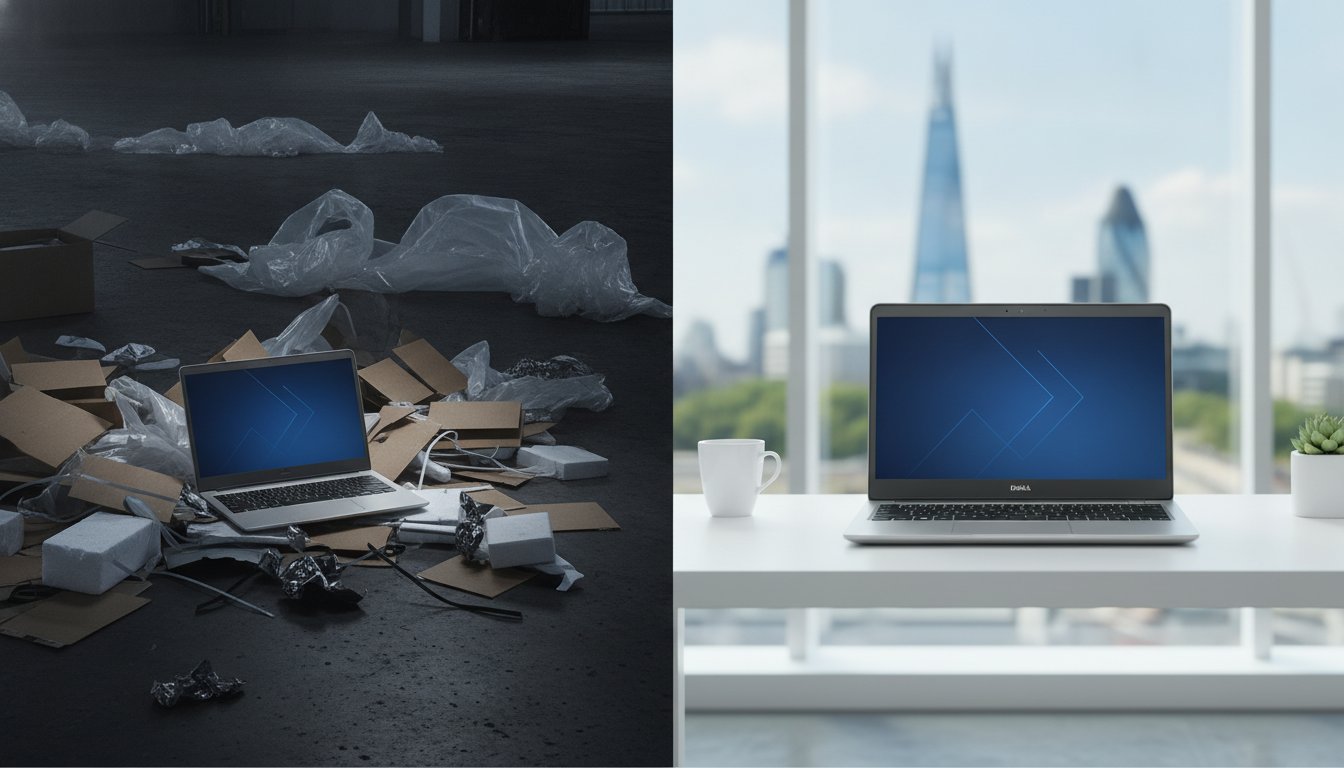
Environmental Impact of Buying New vs Refurbished Tech: A 2026 UK Business Guide
Manufacturing a single new laptop generates approximately 350kg of carbon emissions, whilst a certif