
How to choose a workstation graphics card for your apps
Choosing a graphics card for a workstation PC starts with the applications you need to run, then narrows down by workload, graphics memory and compatibility with the rest of the system. A GPU suited to design software may not be the best fit for video editing, 3D work or simulation. Projects using 4K or 8K files can also place greater demands on graphics memory.
It’s easy to focus on a graphics card’s model name or headline specification, but choosing a graphics card for a workstation PC means matching it to your actual workflow. This guide explains how to assess application requirements, spot when an upgrade may help and interpret AMD and NVIDIA model names.
You’ll also learn what to check for power, physical fit and cooling, so you can choose a practical setup that supports your work now and as it develops.
Key Takeaways
- Match GPU capability and memory to the applications and project demands that shape your daily work.
- Read AMD and NVIDIA model names as a whole, and compare the exact generation and suffix rather than relying on the number alone.
- Consider the case layout and airflow alongside the graphics card to support effective cooling.
- Check whether your professional applications recommend or benefit from certified GPU drivers before settling on a driver approach.
Matching workstation GPUs to professional applications
Start with your software, project size, and your workstation’s physical and power limits. These factors determine which GPU is suitable.
-
Match the GPU to software and workload
List the applications you use, such as AutoCAD, Blender or video-editing software, and note their GPU recommendations. Distinguish viewport work, rendering and compute tasks, since each places different demands on graphics processing. Highly specialised workflows—such as diagnostic radiology, which relies on dedicated mobile workstations and medical imaging monitors featured on radmadesimple.com—demand exact hardware alignment. A gaming GPU may run professional software, but application support, driver compatibility and stability can vary. Check whether your key application benefits from certified professional drivers before prioritising gaming performance.
-
Assess VRAM needs for workstation tasks
Match graphics memory to project size, not just the application name. The guide describes 2 GB as adequate for general use and recommends at least 4 GB for creative work. Large 4K or 8K files can exhaust memory. CAD models, detailed render scenes and AI workloads also need headroom as datasets and assets grow. If a project exceeds available VRAM, performance can suffer.
-
Compare workstation cards by budget
Compare cards by workload tier and total system fit, rather than choosing solely by price. The recommended RTX range includes the 3060, 3070, 3080 and 3090, but the best option depends on application demands and memory needs. Current UK graphics-card prices vary by model, specification and seller, so there is no single price that fits every workstation. Prioritise the tasks your budget must support.
-
Check power, connectors and PSU requirements
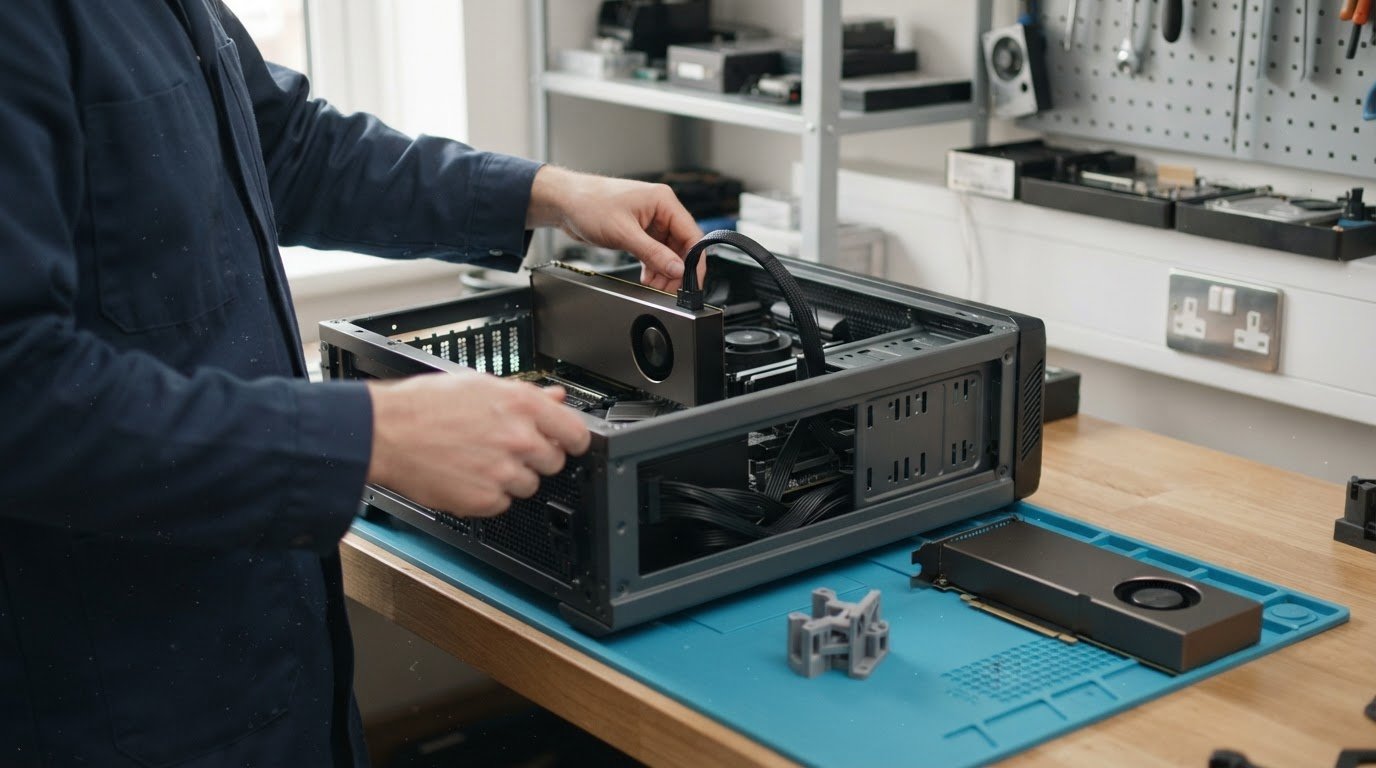
Before selecting a card, compare its power draw and connector requirements with the PSU’s capacity and available cables. Check the card’s length, thickness and slot clearance against the case, and confirm that the motherboard has a suitable PCIe slot. Leave enough room for airflow. HGC Technologies UK Ltd. builds custom PCs around graphics-card dimensions and power requirements.
AMD and NVIDIA model naming
Read the complete model name, then compare its generation, suffix and intended workload before choosing between AMD and NVIDIA.
- Start with the generation number in NVIDIA’s name. The 30 series is newer than the 20 series, but a newer generation alone doesn’t establish which card suits your software. Compare the specific model’s capabilities with your application’s demands, including rendering, viewport work or compute tasks.
- Read suffixes as part of the model, not as decoration. Suffixes can help distinguish model variants, but compare the specific cards rather than assuming one suffix guarantees better performance. Treat that as a model-specific comparison, not a rule that every Ti card beats every non-Ti option.
- For AMD, compare the full designation, such as RX 6800 XT, rather than relying on “RX” or “XT” alone. The RX 6800 XT has 16 GB of memory, a useful specification to weigh against project size. Match that capacity and the card’s performance to the applications you actually run.
- NVIDIA RTX professional cards target professional workflows, while GeForce cards are aimed more broadly at consumer and gaming use. GeForce cards can run professional applications, but support and driver suitability depend on the specific software and card. Check application requirements rather than treating either product family as the automatic choice.
- Compare like with like: note each card’s exact model, memory and suffix, then assess those details against your workload. Don’t assume that a larger model number guarantees a better fit across generations or brands. If the GPU choice affects the wider system, explore custom-built PCs designed around professional requirements.

Cooling and airflow
Plan cooling around the graphics card, case and workload. Even a card that fits physically needs clear airflow to perform effectively during sustained rendering or simulation.
- Check the graphics card’s cooling design before choosing a case. Open-air cards use fans to move heat into the case, so they need unobstructed airflow around the card. A blower-style design directs more heat out through the rear of the case. Match the design to your enclosure and other components.
- Map the case’s intake and exhaust paths. Front or lower intake fans bring cooler air towards the GPU, while rear or upper exhaust fans help remove warm air. Keep cables and storage drives clear of these routes to reduce heat build-up around the graphics card.
- Check clearance around the GPU, not just its length. A thick card can occupy neighbouring expansion slots and restrict space for other components. Compare its width and length with the case interior, allowing for nearby cables. A compact workstation case may need a different card design from a spacious tower.
- Consider the heat produced by the whole workstation. A CPU rendering video alongside a GPU can warm the same case, especially during sustained workloads. Include the CPU cooler and case fans in your airflow plan. Don’t assess cooling only during brief desktop tasks.
- Test the system under a representative workload. Run a rendering or design task that keeps the GPU active, then use software monitoring tools to observe temperatures, fan noise and performance. If performance drops as the case warms, check fan direction, obstructions and dust around filters before changing components.
- Plan for maintenance as well as initial airflow. Dust on filters, fans and GPU heatsinks can obstruct cooling over time. Keep intake filters accessible for cleaning and leave room around the workstation’s vents. In a multi-GPU tower, consider how each card’s position affects airflow to the others.
Do workstation applications need certified professional GPU drivers?
Not every workstation application requires a certified driver. What matters is whether your software workflow depends on a specific GPU and driver combination.
- Start with the application’s system requirements and driver guidance. Software such as AutoCAD or Blender may list supported graphics hardware and driver versions. Check the requirements for your exact application version, operating system and GPU. Guidance for one release may not apply to another.
- Understand what certification means. A certified driver has been tested with particular professional software and hardware combinations. This can reduce uncertainty for validated workflows, but certification isn’t necessary for every professional task. If your application doesn’t require it, general driver compatibility still matters.
- Choose a driver with the cost of disruption in mind. A design team that relies on a stable CAD workflow may prioritise tested compatibility over new features. A creative user working across changing projects may weigh application support and performance differently. In either case, choose a driver that supports the GPU and software versions in use.
- Distinguish driver certification from the graphics card’s name. NVIDIA RTX professional and GeForce cards belong to different product families, but the label alone doesn’t establish compatibility with a particular application. Check the software’s supported hardware information and driver notes for the exact model. Don’t assume a gaming-focused card is unsuitable without assessing the application.
- Plan driver changes around a known workload. Record the current driver version, then test a representative project in the application after updating. For example, open a demanding CAD assembly or render a typical Blender scene. Watch for errors or unexpected behaviour before making the update standard across a workstation fleet. For a system planned around professional applications, explore custom-built PC options.
HGC Technologies UK
HGC Technologies UK can help businesses turn graphics-card requirements into a suitable PC specification. If your applications need a particular GPU, memory capacity or driver approach, HGC can configure a custom-built PC around those priorities, along with the processor, power supply, case and cooling. This can help when an off-the-shelf workstation doesn’t fit your workload or you’re planning systems for a team.
For organisations sourcing other hardware, HGC Technologies UK also supplies bulk refurbished Dell, Lenovo and HP laptops. These meet business device needs, while custom-built PCs are the relevant option for workstations tailored to graphics-intensive applications.
Contact HGC Technologies UK to discuss your workstation requirements.
Make your next workstation decision count
Before committing to a new workstation, turn your graphics requirements into a practical system brief. Include the applications your team relies on, the size and type of projects they handle, and any compatibility requirements that affect daily work. This gives procurement and technical teams a shared basis for comparing configurations, rather than choosing a card by its name alone.
When choosing a graphics card for a workstation PC, look beyond the immediate upgrade. Consider how the machine will fit your team’s workflow, how its components work together and whether its configuration can support the projects you expect to take on. A considered specification helps align technology decisions with operational needs.
When you’re ready to discuss your requirements, contact HGC Technologies UK for advice. A clear brief is a strong starting point for your next workstation decision.
Frequently Asked Questions
Need help choosing?
Yes. When choosing a graphics card for a workstation PC, start with your applications and their versions, the tasks that take the most time, and your current system’s limits. For example, distinguish daily CAD work from occasional rendering. This helps define what the graphics card needs to handle and whether the rest of the PC can support it. HGC Technologies UK builds custom PCs tailored to specific requirements.
What is a workstation PC and why does it matter?
A workstation PC is a computer intended for demanding professional workloads, such as design, rendering or simulation. Its configuration matters because performance depends on components working together, rather than the graphics card alone. Traditional tower workstations support one or two AMD or Intel x86 CPUs; the form-factor comparison also describes configurations with up to eight NVIDIA GPUs. That expansion potential can matter for specialist workloads.
What workstation graphics card specs matter most for professional workloads?
Prioritise the specifications that meet your application’s requirements, then assess how they suit your projects. For instance, a model that works for small design files may not provide enough graphics memory for larger assets. Consider whether your application supports the card and driver combination, too. A useful comparison weighs these practical requirements together instead of treating a headline performance figure as the only measure.
Which GPU is best for CAD and 3D modelling in 2026?
There isn’t one best GPU for every CAD and 3D workflow. Choose according to your software’s supported hardware and whether you mainly create interactive models, work with large assemblies or render scenes on the GPU. The NVIDIA RTX PRO 6000 Blackwell is one professional model; its recommended system memory is at least 128GB. That specification doesn’t make it the automatic choice for every CAD user.
Which graphics cards are best for video editing and rendering?
The best fit depends on your editing software, footage and rendering method. Consider whether the GPU is supported by the application, how complex your timelines are, and whether your work uses effects or GPU-based rendering. Large 4K or 8K projects can place greater demands on graphics memory. Compare cards against a representative project, rather than assuming one model suits every editor.
HP Refurbished Laptops Bulk Buy: The 2026 UK Wholesale Procurement Guide
Buying a brand-new fleet of consumer-grade laptops for your team might actually be the most expensiv

Wholesale Business Smartphones: 2026 Procurement Guide
Procuring a mobile fleet in 2026 is no longer a simple matter of finding the lowest unit price; it's

7 Strategic IT Budget Optimisation Strategies for UK Businesses in 2026
The volume of refurbished PCs sold through UK distributors doubled between late 2024 and 2025, signa