

How to upgrade server memory for better performance
Server memory isn’t interchangeable with desktop RAM. Server modules may use ECC to detect and correct certain memory errors, and registered DIMMs to support server configurations. Effective server memory upgrades for performance start with matching memory type, capacity and speed to the server and processor, then placing modules correctly across memory channels.
It’s easy to assume that adding RAM is all it takes to improve a server. But an incompatible module, unsupported configuration or unbalanced placement can undermine an upgrade, even when the capacity looks right. First understand the workload’s needs and the hardware’s limits, then plan the installation.
This guide explains how server and desktop memory differ, how to address common compatibility and installation problems, and how to plan a balanced upgrade for Dell servers. It also covers signs that memory pressure may be affecting performance and how capacity, speed and channel configuration work together, helping you make a more informed upgrade decision.
Key Takeaways
- Choose server memory for the platform, not by desktop RAM form factor alone: ECC support, DIMM type, rank and speed all affect compatibility.
- Before upgrading, compare the installed modules, slot population and supported options with the server’s specifications to avoid boot or performance issues.
- Power down and disconnect the server before installation, take electrostatic-discharge precautions, and make sure each module is fully seated.
- Balance DIMMs across the processor’s memory channels; on an eight-channel platform, groups of eight per processor are advised for best performance.
- For Dell upgrades, compare the server generation and workload with supported memory capacity, speed and future expansion needs before choosing a configuration.
What is the difference between desktop and server memory?
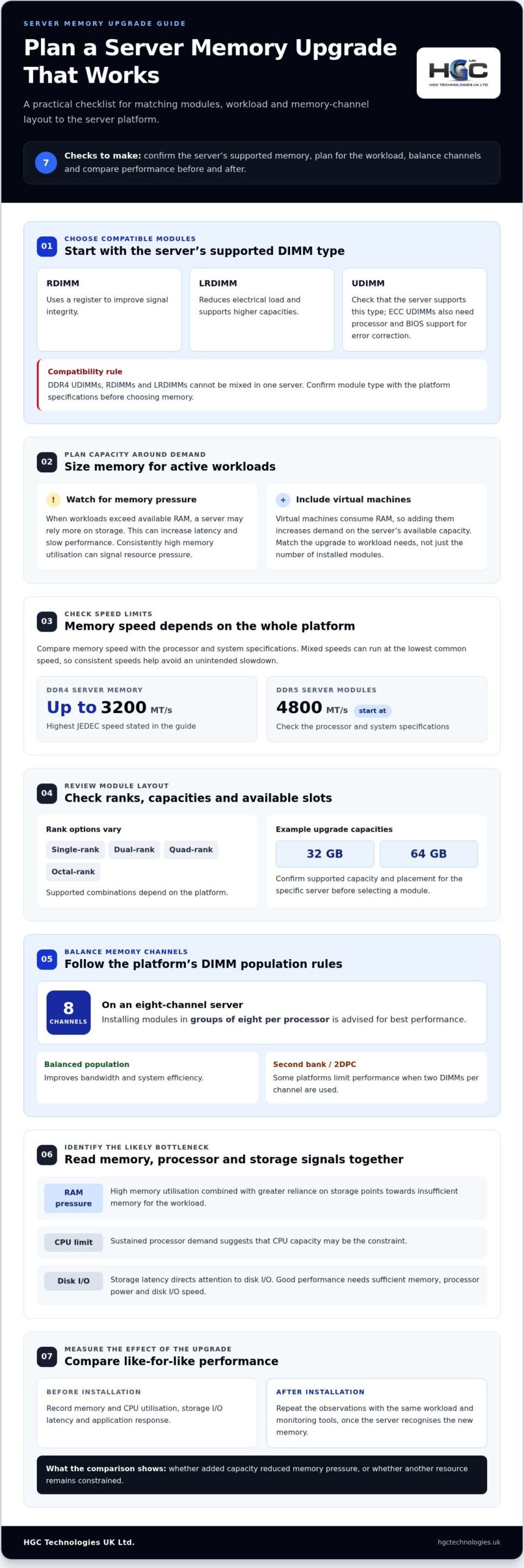
- Choose RDIMM, LRDIMM or UDIMM memory according to the server’s supported configuration. RDIMMs use a register to improve signal integrity; LRDIMMs reduce electrical load and support higher capacities. DDR4 UDIMMs, RDIMMs and LRDIMMs cannot be mixed in one server. ECC UDIMMs also need processor and BIOS support for error correction.
- Match capacity to active workloads, not just the number of installed modules. When workloads exceed available RAM, a server may rely more on storage, increasing latency and slowing performance. Consistently high memory utilisation can signal resource pressure. Virtual machines also consume RAM, so adding them increases demand on the server’s available capacity.
- Compare the memory speed with the processor and system specifications before selecting a module. The highest JEDEC speed for DDR4 server memory is up to 3200 MT/s, whilst DDR5 server modules start at 4800 MT/s. A server can run mixed speeds at the lowest common speed, so consistent speeds help avoid an unintended slowdown.
- Review installed DIMM capacities, ranks and available slots before planning an upgrade. Server modules may be single-rank, dual-rank, quad-rank or octal-rank; supported combinations depend on the platform. Common upgrade module capacities include 32 GB and 64 GB. Confirm the supported capacity and placement pattern for the specific server before choosing either example.
- Distribute modules across the processor’s memory channels using the platform’s population rules. Balanced channel population improves bandwidth and system efficiency. On a server with eight memory channels, installing modules in groups of eight per processor is advised for best performance. Some platforms limit performance when modules occupy the second bank, or 2DPC, meaning two DIMMs per channel.
- To identify whether RAM, CPU or storage is the likely bottleneck, compare how the workload behaves. NHS guidance says good performance needs sufficient memory, processor power and disk I/O speed. High memory utilisation combined with greater storage reliance points towards RAM pressure; sustained processor demand suggests CPU limits, while storage latency directs attention to disk I/O.
- Measure server performance before and after an upgrade using the same workload and monitoring tools. Record memory and CPU utilisation, storage I/O latency and application response before installation. Repeat these observations after the server recognises the new memory. Comparing like-for-like periods shows whether added capacity reduces memory pressure or another resource remains constrained.
Troubleshooting detection and compatibility issues
If a server fails to recognise new memory or reports errors, follow these checks in order. The memory configuration must be compatible with the server, processor, firmware and module type.
-
Check server and processor compatibility
Start by identifying the server model, processor and supported memory configuration in the system information or firmware menus. Compare these details with the platform’s memory requirements, including generation, module type, capacity and speed. DDR4 and DDR5 modules aren’t socket compatible, so don’t attempt to combine them. Also confirm that the processor supports the chosen memory type before installation, particularly for ECC UDIMMs.
-
Scan for compatible upgrades
Use a system scanner to identify the server hardware and installed memory, then compare its suggested module type and configuration with the server specifications. Treat the scan as a starting point, not a substitute for checking processor and platform support. If the suggestion differs from the installed memory, confirm whether the system supports that combination. Unsupported configurations can prevent booting or cause performance problems.
-
Check server memory compatibility
Compare the proposed module with the installed DIMMs and supported configurations. DDR4 UDIMMs, RDIMMs and LRDIMMs cannot be mixed in one server; mixing them can cause boot failure. DDR5 UDIMMs also aren’t socket compatible with DDR5 RDIMMs or MRDIMMs. Check speed against processor and system specifications: mixing 2933MHz and 3200MHz memory can lead to a lower operating speed. Firmware limitations can also affect detection or performance, so check BIOS settings and system management tools after installation.
-
Verify MRDIMM bandwidth and platform compatibility
Confirm that the platform supports MRDIMMs before selecting one. MRDIMM operation depends on compatible hardware; Intel Xeon 6 is an example of a supporting platform. On compatible systems, MRDIMMs allow two memory ranks to operate simultaneously on one DIMM, with data-transfer rates up to 8800 MT/s and beyond. Don’t assume that this bandwidth applies to every processor or configuration. For planned infrastructure requirements, explore server solutions alongside the memory plan.
Mixing memory speeds, using unsupported configurations or encountering firmware limitations can cause problems after a server memory upgrade. If symptoms persist, review the installed modules, processor support, platform requirements and firmware settings together. Where practical, change one factor at a time to keep troubleshooting focused and identify the compatibility issue before another upgrade attempt.
Memory module installation troubleshooting
Use a controlled installation sequence to prevent detection faults and protect server data. Power down the server and disconnect it from every power source before installing memory.
-
Assess downtime and data-loss risks
Plan an installation window because the server will be unavailable while powered down. Before modifying hardware, protect critical data and system configurations so they can be recovered if an installation problem interrupts normal operation. Record relevant configurations too, particularly where server settings affect workloads or recovery.
After the upgrade, confirm that the server recognises the memory before returning it to its usual environment. Don’t begin while applications are still writing important information. A planned shutdown and protected configuration help reduce avoidable disruption, but you still need to validate the system after installation.
-
Identify DDR4 and DDR5 module types
Read the server’s existing module labels and identify its memory generation before handling components. DDR4 and DDR5 modules aren’t socket compatible, so a DDR4 module cannot be installed in a DDR5 slot, or vice versa. Modern servers use one generation according to their platform, rather than accepting the latest module by default.
Keep the replacement memory type aligned with the server’s supported configuration. DDR5 module types also cannot be mixed: DDR5 UDIMMs aren’t socket compatible with DDR5 RDIMMs or MRDIMMs. Compare the module type and system requirements before opening the chassis, then organise the modules in installation order to avoid confusion during the upgrade.
-
Install memory modules
Power down the server, disconnect all power sources and follow electrostatic-discharge precautions before handling memory modules. Open the retaining clips, align the module’s notch with the slot and press evenly until it seats securely. Don’t force a module that resists. Check its orientation and slot selection first.
Inspect the connection after seating the module. If its gold or tin contacts remain visible, press it further until it sits fully in the slot. A partially inserted module may not work or may go undetected at startup. Close the chassis and reconnect power only after installation is complete.
Start the server and use BIOS settings or system management tools to confirm the installed memory capacity. If the system doesn’t recognise a module, power down and disconnect it before reseating the memory, then repeat the detection checks. Firmware updates may address performance problems caused by firmware limitations, so review firmware when troubleshooting persistent errors.
Balancing DIMM population across memory channels
Use the server’s memory-channel map to plan each DIMM position before adding modules. A balanced configuration can improve bandwidth and system efficiency.
- Map the available channels. Find the channel layout in the server documentation or management interface, then note the slots associated with each processor. Don’t assume adjacent slots belong to the same channel. For example, with a four-channel layout, follow the labelled slot sequence rather than simply filling the first four visible sockets. The map shows where modules belong to distribute memory correctly and avoid leaving channels unused.
- Populate channels evenly. Follow the system’s recommended order, distributing modules across available channels before adding more DIMMs to an already populated channel. Balanced population lets the memory controller use channels together, improving bandwidth and efficiency. On a platform with eight memory channels, installing modules in groups of eight per processor is advised for best performance. Follow the correct slot sequence for each processor.
- Plan for the workload and capacity. Match the number and capacity of modules to the server’s supported configuration and the workload’s memory demand. Equal-capacity modules across channels can help keep capacity distribution balanced. Check installed DIMMs and available slots, then choose an expansion pattern that uses channels evenly. Don’t prioritise maximum total capacity if the placement leaves channels empty or conflicts with platform rules.
- Check the second bank’s limits. Some server platforms limit memory performance when modules occupy the second bank, known as 2DPC, or two DIMMs per channel. Before filling every slot, check whether the system changes memory operation in this arrangement. A layout using one DIMM per channel may perform differently from a fully populated layout, so compare supported population patterns rather than assuming more installed modules always enhance speed.
- Validate the finished layout. After installation, compare the physical slot pattern with the channel map and inspect the system’s memory status. Confirm that every expected module is recognised and the reported configuration matches the intended layout. If a channel appears empty, power down before reseating or moving a DIMM. Retest the workload after correcting placement, since memory technologies and platform rules determine available bandwidth.
Dell server RAM upgrades
Plan a Dell memory upgrade around the exact server model, workload and supported configuration. The same capacity target can require different DIMM layouts across Dell generations. Treat server memory upgrades for performance as a platform-specific decision, not a generic parts purchase.
- Identify the Dell model and workload. Record the server generation and model before selecting memory. Virtualisation, databases and other demanding workloads can benefit from more RAM when existing capacity constrains users, applications or processes. ECC memory can detect and correct certain memory errors, helping protect applications and data integrity. Base the upgrade plan on observed demand, such as virtual machines competing for host memory or a database experiencing consistent memory pressure.
- Compare capacity limits with the configuration. Dell model examples show why model-specific planning matters. A Dell 14G R640 with 64GB DIMMs has a listed maximum capacity of 1536 GB; a Dell 15G R650 with 64GB DIMMs has a listed maximum of 2048 GB. A Dell 16G R960 with 64GB DIMMs has a listed maximum of 4096 GB. These are distinct model examples, not interchangeable limits. Confirm the server’s processor, supported DIMM types and slot population before using a capacity figure to plan an upgrade.
- Choose module capacity and speed together. Server upgrades commonly use 32GB or 64GB DIMMs, but processor and system specifications determine supported speeds and population. Keep speeds consistent where possible, because the system runs at the lowest common speed when memory speeds differ. Review the installed modules and memory-channel layout before choosing replacements. For server memory upgrades for performance, capacity alone isn’t enough: the selected speed and placement must suit the Dell platform and its workload.
- Preserve expansion options. Map occupied and available slots before installing DIMMs. Filling every slot immediately may leave less room for future capacity increases, while keeping slots available can simplify later expansion and reduce long-term infrastructure costs. Balance current workload needs against expected growth, channel placement and platform rules. For example, a database server may need more memory as its dataset or concurrent activity grows, while a virtualisation host must account for the combined demands of its active VMs.
- Validate the upgrade against performance needs. Compare memory utilisation and workload behaviour before and after installation. If extra RAM reduces memory pressure, virtual machines or applications may have more capacity to operate. If performance remains constrained, processor power or disk I/O may also be limiting the workload. A considered server memory upgrades for performance plan can help extend existing hardware’s useful life and delay a refresh when the server remains suitable for its role.
Planning a Dell upgrade for an enterprise workload? Explore server solutions to align the system choice with your infrastructure requirements.
HGC Technologies UK Ltd.: Bulk Dell Refurbished Laptops
HGC Technologies UK Ltd. supports business technology procurement with bulk refurbished laptops and custom-built PCs. If a server memory upgrade is part of a wider infrastructure review, these options can address separate end-user computing or workstation requirements alongside the server plan.
Choose bulk Dell, Lenovo or HP refurbished laptops when equipping teams or supplying devices for resale. For workstation needs that call for a tailored desktop configuration, consider custom-built PCs. These offerings serve different roles from server memory, so match each purchase to its intended workload and users.
For businesses planning hardware across server and user environments, HGC Technologies UK Ltd. can support related computing needs with bulk refurbished laptops, custom-built PCs and server solutions. Contact HGC Technologies UK Ltd. or visit hgctechnologies.uk to discuss your requirements.
Make your next infrastructure decision count
Plan your next upgrade around the work your systems need to support, then consider how it fits your wider technology roadmap. A thoughtful approach to server memory upgrades for performance can clarify whether to expand existing infrastructure or plan a broader refresh.
For businesses reviewing more than server capacity, HGC Technologies UK Ltd. offers server solutions alongside bulk refurbished Dell, Lenovo and HP laptops. These options can support separate infrastructure and end-user computing requirements, helping you plan purchases around each use case rather than treating every device need alike.
Whether you’re planning server requirements or sourcing devices for a team or resale, take the next step with Contact HGC Technologies UK Ltd.
With a clear view of your workloads and future requirements, you can move forward with confidence.
Frequently Asked Questions
How does adding server RAM improve performance?
Adding server RAM can help when active workloads compete for available memory. With sufficient capacity, the server can keep more working data in RAM instead of relying as heavily on storage, which may reduce storage-related latency. For example, a busy database may respond more consistently if memory pressure was triggering frequent storage access. RAM won’t remove a processor or disk bottleneck, so compare application response and resource use before and after the change.
How to identify whether a server needs a memory upgrade?
Look for sustained high memory use alongside workload slowdowns. Review utilisation during representative busy periods, then compare it with storage activity and application response. Persistent pressure across these measures can indicate insufficient capacity. Consider recent workload changes too: adding virtual machines or expanding a database’s working set raises memory demand. A brief utilisation spike alone doesn’t establish the need for an upgrade, so assess trends under normal operating conditions.
How much RAM does a server need for different workloads?
Size RAM for the workload’s peak concurrent demand rather than applying the same capacity to every server. Account for the operating system, applications, active users, database working data and each virtual machine’s allocation. For example, a host running several VMs must accommodate their combined memory needs as well as its own system processes. Use observed consumption during busy periods to plan capacity, then compare your target with the server’s supported configuration.
How to check server memory compatibility and supported RAM capacity?
Start with the server model and processor, then use the system information or BIOS to identify the installed memory configuration. Compare the proposed module type and capacity with the platform’s supported options and slot layout. For a Dell server, use its exact model, such as an R640 or R650, rather than relying on the brand alone. Check that the planned total and DIMM arrangement suit that specific system.
How to install or upgrade RAM in a server safely?
Prepare a maintenance plan before opening the server: protect important data and configuration settings, and arrange for workloads to stop cleanly. Power down, disconnect the system from all power sources and take electrostatic-discharge precautions. After installing the modules, inspect their seating before restarting. Check the detected memory in BIOS or a system management tool, then review key applications and services before returning the server to normal operation.
Can server memory upgrades reduce paging and improve virtual machine performance?
Yes, if limited RAM is making the server rely more heavily on storage for active workloads. Each virtual machine uses some of the host’s available memory, so adding VMs can increase pressure and paging. An upgrade can give the host more room for simultaneous workloads, but careful memory allocation still matters. Track host and VM memory use together; if pressure persists, review allocation patterns and other resource limits.

Troubleshooting Common Refurbished Laptop Issues: A Professional B2B Guide
The assumption that refurbished hardware is inherently prone to failure is a misconception that cost

Bespoke PC Builds for Business: A 2026 Strategic Procurement Guide
The standard corporate workstation is no longer a safe investment. It's a bottleneck disguised as a

Noise Levels of Refurbished Rack Servers: What to Expect
A refurbished rack server’s age may matter less to its noise than its configuration and operating