
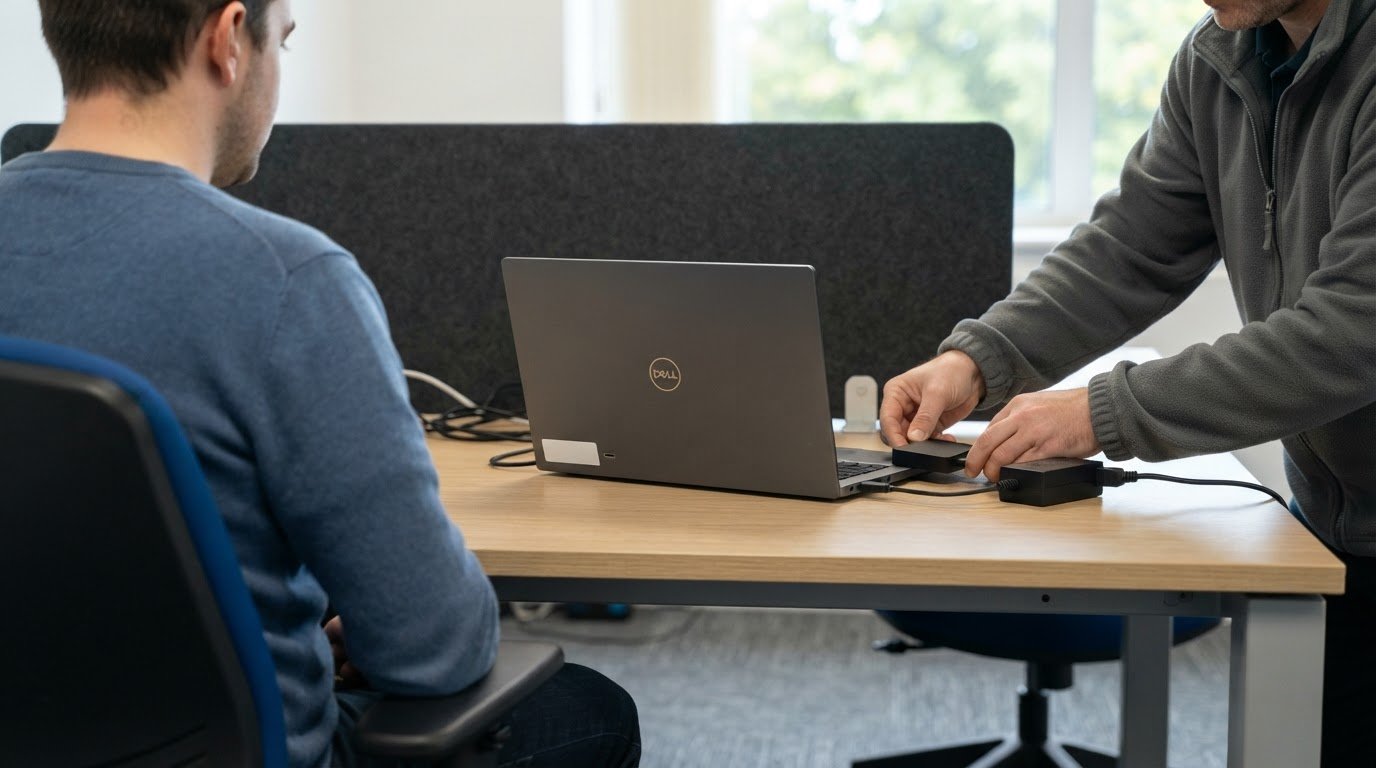
Onboarding new employees with refurbished or new laptops
A refurbished business laptop can be a good choice for a new starter, especially for lighter duties, a spare device or a hot-desk setup. For frontline, demanding or client-facing roles where a laptop is used throughout the day, new hardware may be the better fit. Onboarding new employees with refurbished laptops works best when each device suits the role and is securely prepared before the employee’s first day.
Weigh the potential savings against the device’s remaining supported life and the demands of the job. This guide explains how to choose between refurbished and new laptops, prepare devices for secure, smooth onboarding, and assess where refurbished hardware may reduce costs. It also covers the coordination between HR, IT and other teams that helps new employees start with the right equipment and access.
Key Takeaways
- Match each laptop to the employee’s role: refurbished business devices can suit lighter duties, spares and hot-desking, while demanding or client-facing work may call for new hardware.
- Prepare each device before the employee starts, including security settings, required software, account access and a pre-start login test.
- Use asset records and clear ownership processes to keep track of assigned laptops, accessories and access needs across teams.
- Assess potential savings alongside the device’s remaining supported life, workload suitability and the practical needs of your onboarding process.
Configuring device security and required software
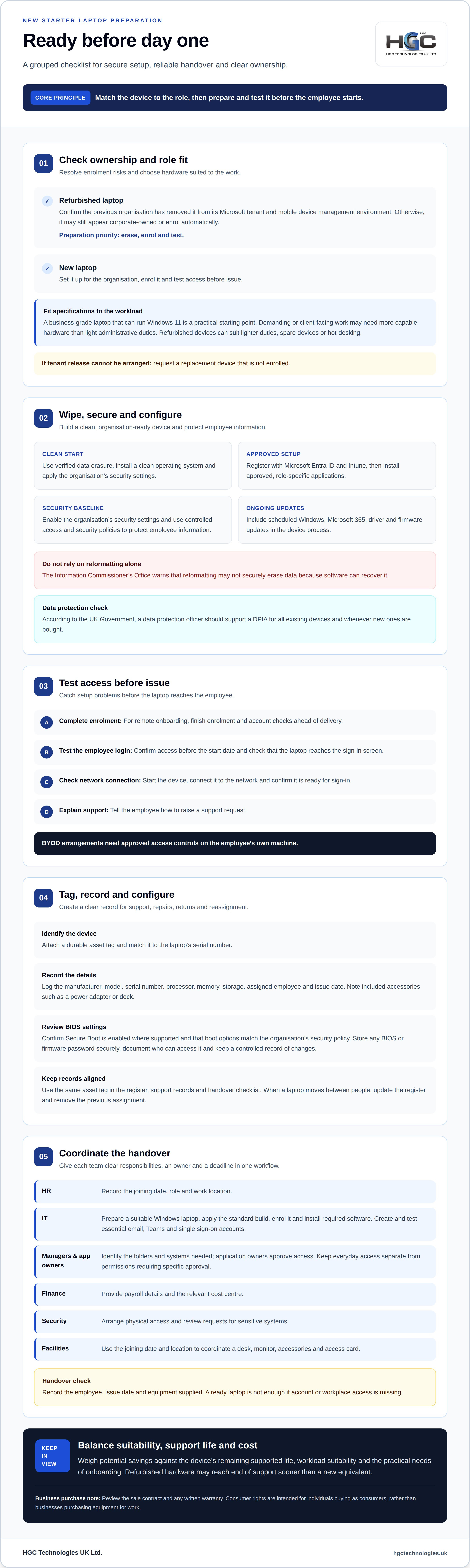
Prepare each laptop before the employee starts: secure it, install approved software and test access. For refurbished machines, also check previous ownership and organisation enrolment.
Secure wiping and device preparation
Start with verified data erasure, then install a clean operating system and apply the organisation’s security settings. The Information Commissioner’s Office warns that reformatting alone may not securely erase data, because software can recover it. Register the device with Microsoft Entra ID and Intune, install role-specific applications, and test the employee’s login before their start date.
Warranty and consumer rights: For a business purchase, review the sale contract and any written warranty. Consumer rights are intended for individuals buying as consumers, rather than businesses purchasing equipment for work.
Data protection and cybersecurity: Protect employee information with controlled access and security policies. According to the UK Government, a data protection officer should support a DPIA for all existing devices and whenever new ones are bought.
Suitable specifications: Choose specifications around the employee’s applications and workload. A business-grade laptop that can run Windows 11 is a practical starting point; demanding roles may need more capable hardware than light administrative work.
Before enrolment, ensure the previous organisation has removed the laptop from its Microsoft tenant and mobile device management environment. Otherwise, it may still appear corporate-owned or enrol automatically. For remote onboarding, complete enrolment and account tests ahead of delivery. For bring-your-own-device arrangements, apply approved access controls to the employee’s own machine. If the seller cannot arrange tenant release, request a replacement device that is not enrolled.
| Option | Ownership status | Preparation priority |
|---|---|---|
| Refurbished laptop | Check prior tenant release | Erase, enrol and test |
| New laptop | Set up for the organisation | Enrol and test |
Choose based on the role, the device’s enrolment status and the time available to prepare it.
Device risks and mitigation
Prior company enrolment can block access or trigger automatic management, while incomplete wiping can expose data. A refurbished laptop may also reach the end of support sooner than a new equivalent. Reduce these risks by confirming tenant release, applying a clean build, enabling the organisation’s security baseline and testing access before issue. Include scheduled Windows, Microsoft 365, driver and firmware updates, then tell the employee how to raise a support request.
Asset tags and BIOS configuration
An asset tag links a physical laptop to its entry in the organisation’s asset register. Attach a durable label, then record the tag, manufacturer, model, serial number, assigned employee and issue date. Anyone handling a repair or return can use these details to identify the machine without relying on a user’s memory. Use the same tag in the register, support records and handover checklist.
Record the laptop’s processor, memory and storage alongside its model. These details help IT distinguish similar devices and plan replacements, repairs or redeployment. For example, a returned laptop can be matched to its record by serial number before reassignment. Note any included accessories, such as a power adapter or dock, so the employee receives the expected equipment.
Before issue, review the BIOS settings for each model. Confirm that Secure Boot is enabled where supported, and check that boot options match the organisation’s security policy. A BIOS or firmware password can restrict unauthorised changes, but IT must store it securely and document who can access it. Keep a controlled record of settings changed during preparation.
- Identify: Apply the asset tag and match it to the serial number.
- Record: Log the model, storage, accessories and assigned employee.
- Configure: Apply approved BIOS settings and document authorised access.
- Test: Start the device, connect it to the network and confirm it reaches the sign-in screen.
Use the checklist at handover to record the employee, issue date and equipment supplied. When a laptop moves between people, update its register entry and remove the previous assignment. This creates a clear history for support and recovery. For teams preparing a standard device process, laptop onboarding planning can help connect procurement decisions with practical allocation needs.
Coordinating HR, IT, Finance, Security and managers
A shared onboarding workflow gives each team clear tasks before a new starter’s first day. HR records the joining date, role and work location; IT uses those details to prepare a suitable Windows laptop and required software. Assign an owner and deadline to each task, then track completion in one workflow instead of scattered email threads.
IT should create and test essential email, Teams and single sign-on accounts before the employee starts. It can enrol the laptop with Microsoft Entra ID, apply the standard build and install role-specific applications. Managers identify the folders and systems the employee needs, while application owners approve access. This keeps everyday access separate from permissions that require specific approval.
Finance may need payroll details and the relevant cost centre. Security can arrange physical access and review requests for sensitive systems. Facilities can use the employee’s joining date and location to coordinate a desk, monitor, accessories and access card. These dependencies matter: a laptop may be ready, but the employee can still lose productive time if their account or workplace access is missing.
- HR: Record the role, start date and work location.
- IT: Prepare the Windows device, accounts and approved software, then record whether setup was tested.
- Manager: Specify role-related applications, folders and systems.
- Finance and Security: Complete payroll or cost-centre details and relevant access approvals.
- Facilities: Arrange workplace equipment and physical access for the employee’s location.
Include device handover and warranty information in the workflow. Record what the warranty covers and where the employee should raise a support request. A status history also helps teams track outstanding approvals, missed tasks and later changes. For refurbished devices, IT can link the laptop to the employee’s asset record, keeping ownership clear when equipment moves between people or teams.
Affordability and potential savings
Refurbished hardware can reduce the initial outlay, but compare total ownership costs, not just the purchase cost. Include preparation, software licensing, repairs and when replacement may be necessary. A two- or three-year-old business laptop may still provide premium hardware, though its supported life may be shorter than that of a new equivalent. That difference affects how long the initial saving remains useful.
Match each configuration to the employee’s workload. A lighter role may not need the same screen, storage or processing capability as daily client-facing work. Check the keyboard, display and ports during assessment, then consider how the laptop will connect to monitors, docks and the network. A device needing immediate repair or extra accessories can reduce the value of a lower purchase cost.
Standardising models can also simplify preparation. A consistent configuration helps IT apply the same software build and Intune policies across a group of starters. Compare setup time and effort alongside hardware cost. If different models need separate drivers, applications or support processes, include those extra steps in the decision.
- Compare lifecycle: Weigh the purchase cost against supported life and replacement timing.
- Check condition: Assess the screen, keyboard, ports and storage before allocation.
- Review setup: Include software, Intune configuration and IT preparation in the comparison.
- Match the role: Reserve higher-demand devices for employees who rely on them throughout the day.
There is also a resource consideration: manufacturing creates most of a laptop’s lifetime carbon footprint. Extending the useful life of suitable equipment can support a more responsible purchasing approach. Balance that benefit against support lifespan and the employee’s actual workload, rather than choosing refurbished hardware solely for its lower initial cost.
For organisations comparing refurbished business laptops for new starters, explore bulk refurbished laptop options and consider which configurations fit different roles.
HGC Technologies UK Ltd.
HGC Technologies UK Ltd. supplies business laptops for employee onboarding, including bulk refurbished devices and options for roles with different requirements. Its bulk Dell, Lenovo and HP refurbished laptops give organisations a choice across established business ranges. For work that calls for a tailored desktop setup, HGC also builds custom PCs to specific requirements.
Once you’ve matched device types to employee roles, outline the quantities, preferred brands and intended use for procurement planning. This helps align purchasing decisions with onboarding requirements. Refurbished laptops may suit some roles, while intensive or specialist computing needs may call for a different configuration.
To discuss equipment for your employee onboarding plans, contact HGC Technologies UK Ltd.
Build a dependable approach for your next starter
Make laptop planning part of the hiring process, not a last-minute purchase. A consistent approach to onboarding new employees with refurbished laptops helps align procurement with role requirements and future recruitment, while keeping decisions focused on useful working life rather than novelty. Use each new starter as an opportunity to refine how your team plans equipment, access and support.
For businesses assessing refurbished devices at scale, HGC Technologies UK Ltd. supplies bulk Dell, Lenovo and HP refurbished laptops. These options can support procurement planning for teams with different roles and requirements. Consider which device types fit your workforce and how they can form part of a considered equipment plan.
Set your priorities, then contact HGC Technologies UK Ltd. A clear procurement direction can help your organisation welcome new employees with confidence and build a deliberate approach to workplace technology.
Frequently Asked Questions
Is a refurbished business laptop a good idea?
Yes, if the laptop’s condition, remaining support life and capability suit the employee’s work. It can be a practical fit for lighter duties, hot-desking or a spare pool. When onboarding new employees with refurbished laptops, match the machine to the role rather than choosing solely by its refurbished status. Employees using demanding applications throughout the day may need greater capability.
Is refurbished worth it?
It can be, particularly when the device meets the role’s needs and remains useful for the organisation’s planned replacement cycle. Consider preparation, software and likely replacement needs alongside the purchase cost. A laptop that cannot support the employee’s workload can cost time, even if its initial price is lower. Refurbished equipment makes most sense when capability and expected use align.
What about their condition?
Refurbished laptops vary in appearance and wear, so consider physical condition alongside performance. HGC Technologies UK Ltd. says its refurbished laptops are tested and graded before sale. A grade describes condition, but it doesn’t guarantee a better typing experience. For an employee who types extensively, keyboard feel is worth assessing when assigning equipment.
Where can UK businesses buy refurbished laptops for employee onboarding?
UK businesses can source refurbished laptops from a business wholesaler when procurement requires several devices. HGC Technologies UK Ltd. supplies bulk Dell, Lenovo and HP refurbished laptops to corporate clients and resellers. This can suit organisations planning equipment for multiple starters or seeking a consistent purchasing approach. Choose device types according to employees’ roles and procurement requirements.
How can an employer assess refurbished laptop condition and warranty?
Review the grading and physical condition, then read the warranty terms before assigning a laptop. Note what the warranty covers, how claims are handled, and any exclusions or conditions in the written terms. Match the model and serial number to purchasing records. For keyboard-heavy work, assess keyboard comfort; for frequent presentations, inspect the screen and its suitability for the employee’s tasks.
How should employers install software, configure accounts and apply security policies before onboarding?
For onboarding new employees with refurbished laptops, use a role-based setup plan: assign approved applications, create employee accounts and apply the organisation’s access policies. Test a typical work task, not just the login. For example, confirm the starter can open required team files and launch a core application. Keep elevated permissions separate from everyday access and document approvals.

How to Buy Refurbished Laptops in Bulk: The 2026 Procurement Guide
What if the primary threat to your 2026 IT budget isn't the hardware itself, but the lack of a stand
Custom rackmount server builds for UK businesses
Custom rackmount server builds in the UK should be designed around the workload, not simply the high

Ways to Ship Laptops to Remote Employees Securely, With Costs and Setup
Secure delivery starts before the laptop leaves your hands. The best way to ship laptops to remote e