
Refurbished IT for Temporary Office Setups: Costs and Specs
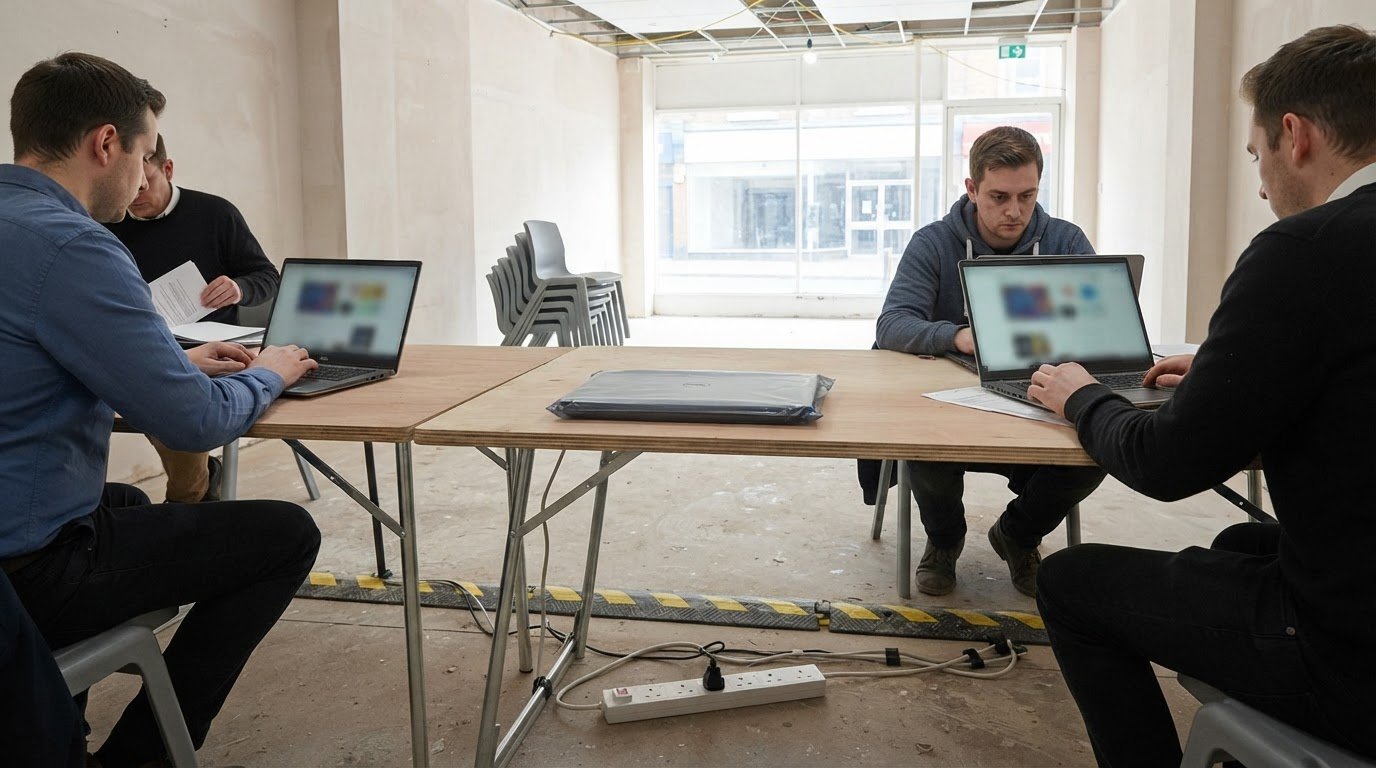
New equipment isn’t the only sensible choice for a temporary office. Refurbished IT for temporary office setups can meet day-to-day business needs when the specification fits the workload; for general office tasks, 16GB of RAM and a 256GB SSD are a practical starting point. The key is to match each device to how it will be used, rather than paying for capacity the team won’t need.
When you need a workspace for a limited period, speed and cost control matter. This guide explains how to source refurbished equipment, choose suitable storage, memory and processing power, and compare a refurbished fit-out with buying new. It also covers planning device quantities and preparing the office so staff can get to work from day one.
Key Takeaways
- Plan device quantities around staff roles, working patterns and whether equipment will be shared, rather than relying on headcount alone.
- Match storage capacity and the operating system to the applications and files the temporary team needs to access.
- Choose processor and memory specifications according to workload, reserving higher capacity for resource-intensive tasks.
- Compare the complete equipment fit-out with new purchases, factoring in what the temporary office needs and which devices can be reused afterwards.
1. Fast sourcing and delivery for short-term office setups
Start by choosing equipment available from existing stock. Refurbished devices in stock can help organisations equip a temporary workspace efficiently. Put the opening date, delivery address, user roles and required quantities in one procurement brief. This gives the supplier a clear basis for matching equipment to the setup, rather than sourcing each item separately.
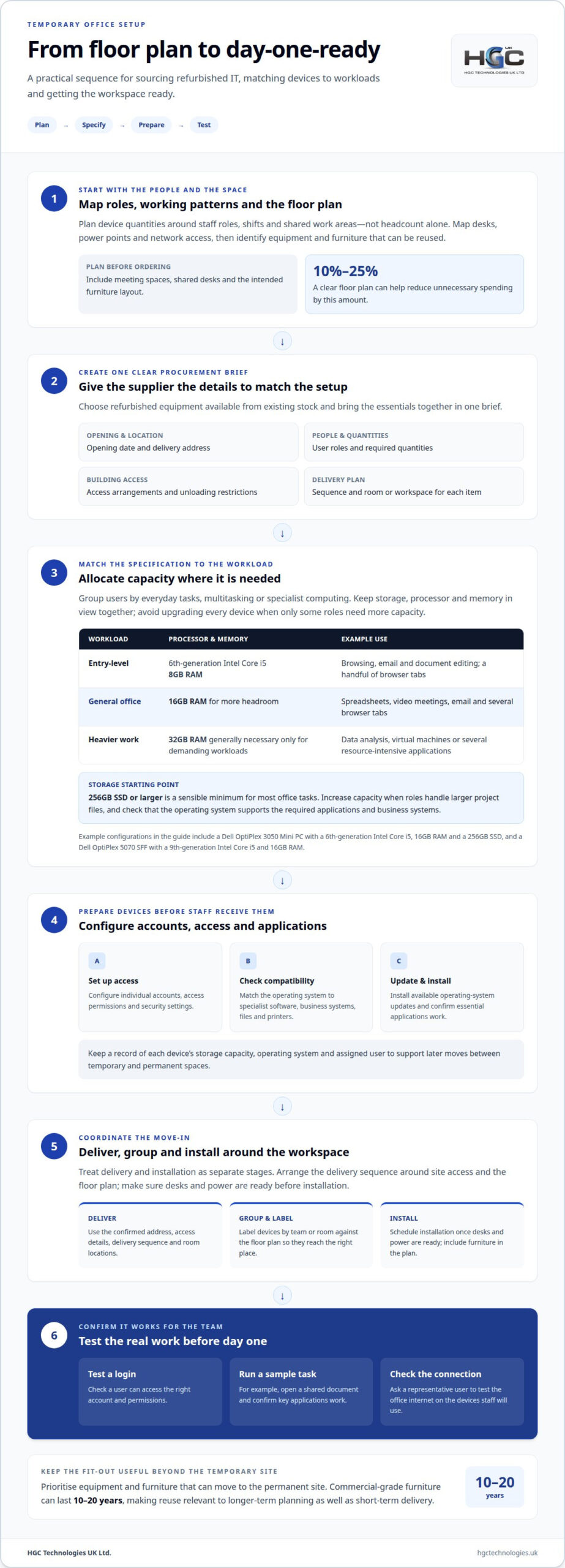
Plan the layout before confirming quantities. Map desks, power points, network access and shared work areas, then identify which existing equipment can be reused. A clear floor plan can help reduce unnecessary spending by 10%-25%. For example, a flexible layout with shared desks may need fewer devices than a permanent, assigned workstation for every person. Include office furniture in the plan, so desks and screens arrive in an order that supports the intended workspace.
Treat delivery and installation as separate stages in the UK move-in plan. Record the site address, access arrangements, delivery sequence and the rooms or spaces where equipment belongs. If the temporary office is in an existing building, note any restrictions on unloading or carrying equipment through the site. These details help organise delivery and installation around the building’s practical requirements, without assuming every location follows the same schedule.
For a quicker setup, group devices by team or room and label them against the floor plan. Schedule installation once desks and power are ready, then ask a representative user to complete everyday tasks on the equipment. Test the office internet connection on the devices staff will use, rather than relying on a single phone. A laptop stand can raise a portable workstation to a suitable viewing height.
Keep the temporary fit-out flexible: retain usable existing office furniture, and prioritise equipment that can move to the permanent site later. Commercial-grade furniture can last 10-20 years, making reuse relevant to longer-term planning as well as short-term delivery.
2. SSD storage and operating system considerations
Choose storage around the files and applications temporary staff need each day. A 256GB SSD or larger is a sensible minimum for most office tasks. SSDs provide responsive access to stored files and applications, helping staff move between documents, email and browser-based tools. For example, a role handling large project files may need more capacity than one mainly using online systems. Match the specification to the work, not simply the office duration.
Align storage and operating-system requirements with the organisation’s IT deployment plan. Before staff receive the computers, the IT team should configure individual accounts, access permissions and security settings. They should install available operating-system updates and confirm that essential business applications work on the selected system. This helps prepare devices without sharing previous users’ accounts or files.
Operating-system compatibility matters as much as storage capacity. List the applications staff need, including specialist software, then match the computer’s operating system to those requirements. The IT team should also consider access to existing business systems, files and printers. Before assigning devices, include a test login and a sample task, such as opening a shared document.
Plan physical storage as well as digital capacity. A lockable cupboard or office locker gives staff a place to secure laptops when they leave the workspace. For staff who travel, choose a backpack with a padded laptop compartment and room for the power supply. Group devices by team or workspace so they can be returned to the right place after use.
Keep the layout flexible if equipment moves between temporary and permanent spaces. A clear record of each device’s storage capacity, operating system and assigned user helps the IT team manage that transition. For bulk deployments, refurbished Dell, Lenovo and HP laptops can provide a consistent starting point for matching computers to office roles.
4. Processor and memory requirements for office workloads
Match processor and memory to each role’s daily applications, rather than choosing identical specifications automatically. For general office tasks, an Intel Core i5 from the 6th generation is a practical baseline. Browsing, email and document editing can run adequately with 8GB RAM, particularly when users keep only a handful of browser tabs open. A temporary meeting room used for presentations and shared documents may suit this entry-level workload.
For most office users, 16GB RAM offers a useful balance between cost and performance. It gives staff more headroom when switching between spreadsheets, video meetings, email and several browser tabs. A refurbished Dell OptiPlex 3050 Mini PC combines a 6th-generation Intel Core i5, 16GB RAM and a 256GB SSD. This example shows how buyers can assess processor, memory and storage together, rather than treating one specification as the whole decision.
Heavier work needs a different allocation. 32GB RAM is generally necessary only for workloads such as data analysis, virtual machines or several resource-intensive applications running together. A team using those tools should be separated from colleagues doing routine administration, so higher specifications go to the roles that need them. A Dell OptiPlex 5070 SFF with a 9th-generation Intel Core i5 and 16GB RAM illustrates a stronger office configuration, though software requirements still guide the final match.
Group users by workload, such as standard documents, multitasking or specialist computing. Match processor generation and memory to each group, and consider whether staff will share devices across shifts. This avoids unnecessary specification upgrades while equipping demanding tasks appropriately. It also helps align computers with the wider workplace plan, including meeting spaces and refurbished furniture. A device schedule can then assign more capable machines to roles that need them.
How can a supplier help determine how many devices a temporary office needs, and which specifications are suitable?
Turn staffing plans into a device schedule by reviewing roles, attendance patterns and workspace layout. Start with the number of people working at the same time, rather than the total workforce. Rotating shifts or shared desks may allow users to share equipment. Dedicated roles, such as reception or finance, may need assigned computers and consistent access throughout the day.
Next, group users by task. Document editing, browser-based systems, video meetings and specialist software place different demands on computers. A role involving several applications at once may need more memory than one focused on email. Data analysis or virtual machines can require higher-capacity specifications. This workload map helps match processors, memory and storage to each role, without giving every user the same device.
Device numbers also depend on shared spaces and working arrangements. Count laptops or desktops for individual workstations, then account for meeting rooms, reception desks and shared project areas. A meeting room computer may need to connect to presentation equipment, whilst mobile staff may need portable devices. The supplier can map these requirements to the office plan and identify equipment that existing teams can reuse.
Prepare a schedule showing device quantities, intended users, key specifications and delivery locations. Include required applications, peripherals and access to existing systems in the same plan. Ask a representative user to test normal tasks on the proposed setup before the move-in. This can reveal compatibility or workflow issues that a device count alone would miss.
The final equipment mix depends on staff numbers present at once, workload, shared spaces and what the fit-out includes. Discuss device quantities and specifications for a temporary office requirement.
HGC Technologies UK
HGC Technologies UK Ltd. supplies bulk refurbished Dell, Lenovo and HP laptops for organisations equipping temporary offices. For suitable desktop requirements, it also offers custom-built PCs tailored to client specifications.
Bring together expected user numbers, main applications, storage needs and preferred device types. This gives HGC Technologies UK Ltd. a clear picture of the planned setup and helps match equipment to the working environment. Consider refurbished IT for temporary office setups when you need business devices for a defined workspace and want to compare refurbished options with new equipment.
For a temporary office requirement, contact HGC Technologies UK Ltd.
Make your temporary setup work beyond day one
Include the handover in your equipment decision. A temporary office may change as teams move between locations, projects develop or staff return to a permanent workspace. Planning for that transition helps determine which devices move with employees, remain available for shared use or support the next phase of work. This lifecycle view makes refurbished IT for temporary office setups part of operational planning, rather than an isolated short-term purchase.
Before procurement moves ahead, bring together your working requirements, user roles and expected changes to the workspace. HGC Technologies UK Ltd. can help businesses consider bulk refurbished laptops or custom-built PCs against those needs. Use the details you’ve established to start a focused discussion about a suitable equipment mix for your temporary office. Contact HGC Technologies UK Ltd. to discuss your requirements and take the next step with confidence.
Frequently Asked Questions
What refurbished IT equipment is best for a temporary office setup?
The right equipment depends on users’ roles, required applications and how the office will operate. Laptops suit staff who move between desks or locations, while desktop PCs can work well at fixed stations. Include screens, keyboards and other peripherals in the overall plan. A team using shared desks, for example, may need a different mix from staff at assigned workstations.
How much does refurbished office IT equipment cost in the UK?
There is no single cost for refurbished office IT in the UK. The total depends on device type, specification, quantity and peripherals. A laptop-only order will differ from a setup that includes desktop PCs and additional equipment. For a useful budget, define the number of users, their work requirements and any equipment already available, then compare like-for-like configurations rather than headline prices alone.
Where can UK businesses buy refurbished laptops, desktops and monitors?
HGC Technologies UK Ltd. supplies bulk refurbished Dell, Lenovo and HP laptops to UK businesses, as well as custom-built PCs for desktop requirements. Include monitors and any required peripherals in the wider procurement plan so the equipment schedule reflects the complete workspace. Then assess the device mix against staff roles and working arrangements. Wholesale pricing is available on request.
What warranty and return periods do UK refurbished IT suppliers offer?
Warranty coverage and return periods depend on the terms of the specific purchase, so no single period applies to every refurbished IT order. Review the written terms for the supplied equipment, how to report a fault and any return conditions. Keep these details with the order record so procurement and IT teams can refer to the same information.
How do refurbished and new IT equipment compare for temporary offices?
Refurbished equipment can be a practical option when its available specification matches the planned workload. New equipment may suit a project that needs a particular configuration or a consistent fleet of new devices. Compare the complete setup, including peripherals, software requirements and future reuse, rather than judging by purchase price alone. The right choice depends on operational needs and plans for the equipment after relocation.
What are the risks of using refurbished IT equipment in a temporary office?
Common issues include mismatched specifications, application incompatibility and equipment that does not suit staff workflows. A computer may handle routine documents but not specialist software. Security also needs attention: the organisation’s IT team should prepare user access and settings before deployment. Testing a representative task can reveal problems before devices are assigned across the temporary office.
Bulk iPhone Supply for UK Corporate Procurement
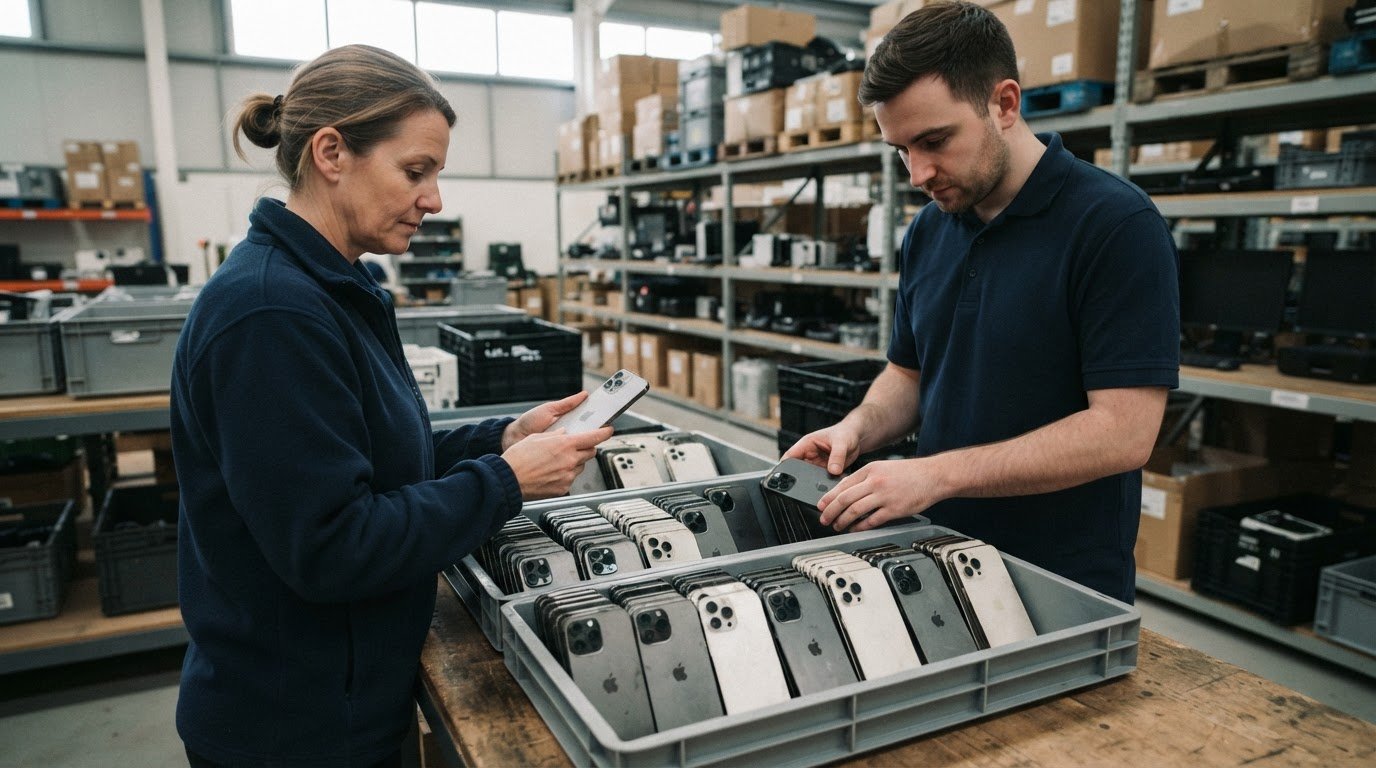
Wholesale iPhones may arrive unlocked and ready for resale, but “wholesale” alone guarantees nei
Custom PCs for Architectural Rendering Farms and Their Costs
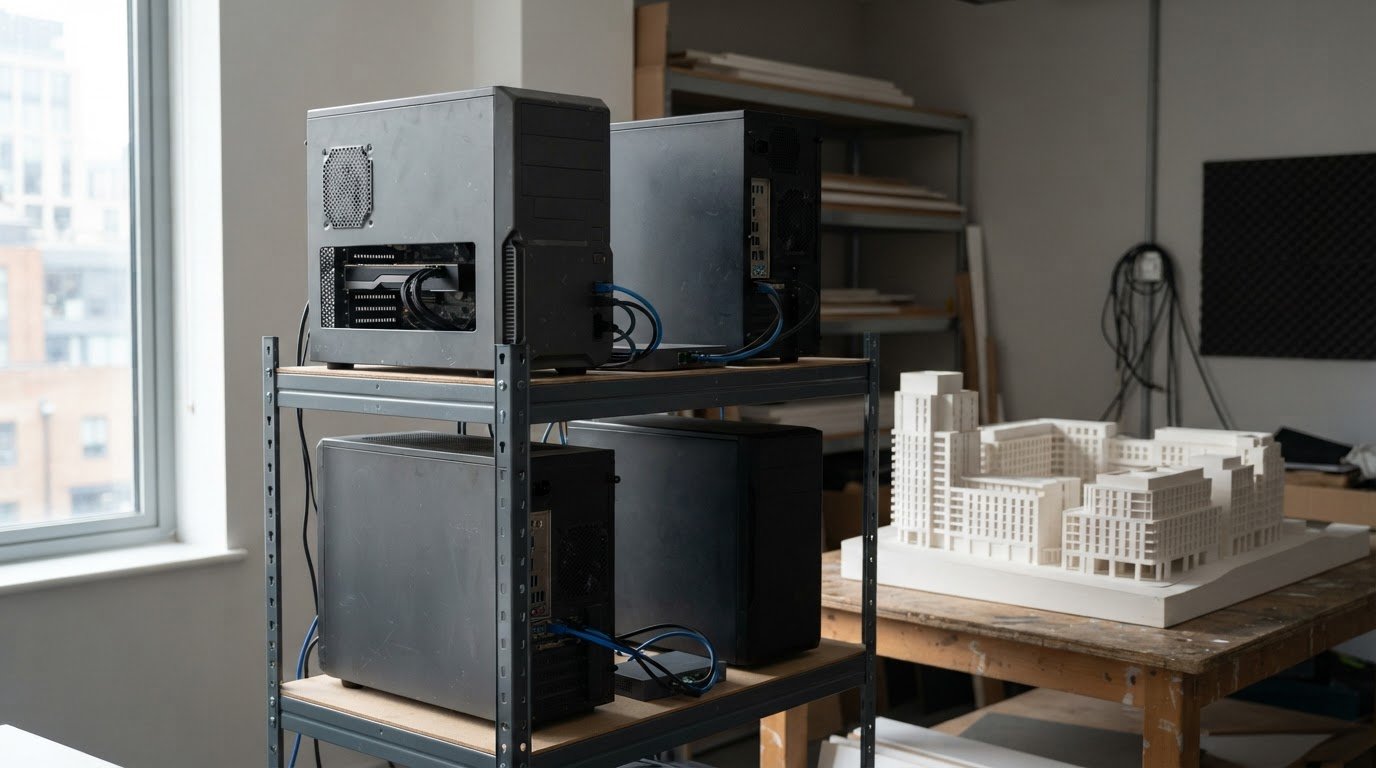
A render farm reduces rendering time by dividing a job into smaller parts and processing them across
Custom Built PCs vs Pre-built for Business: The 2026 Procurement Guide
With enterprise PC prices projected to surge by up to 18% in 2026, the traditional cycle of frequent